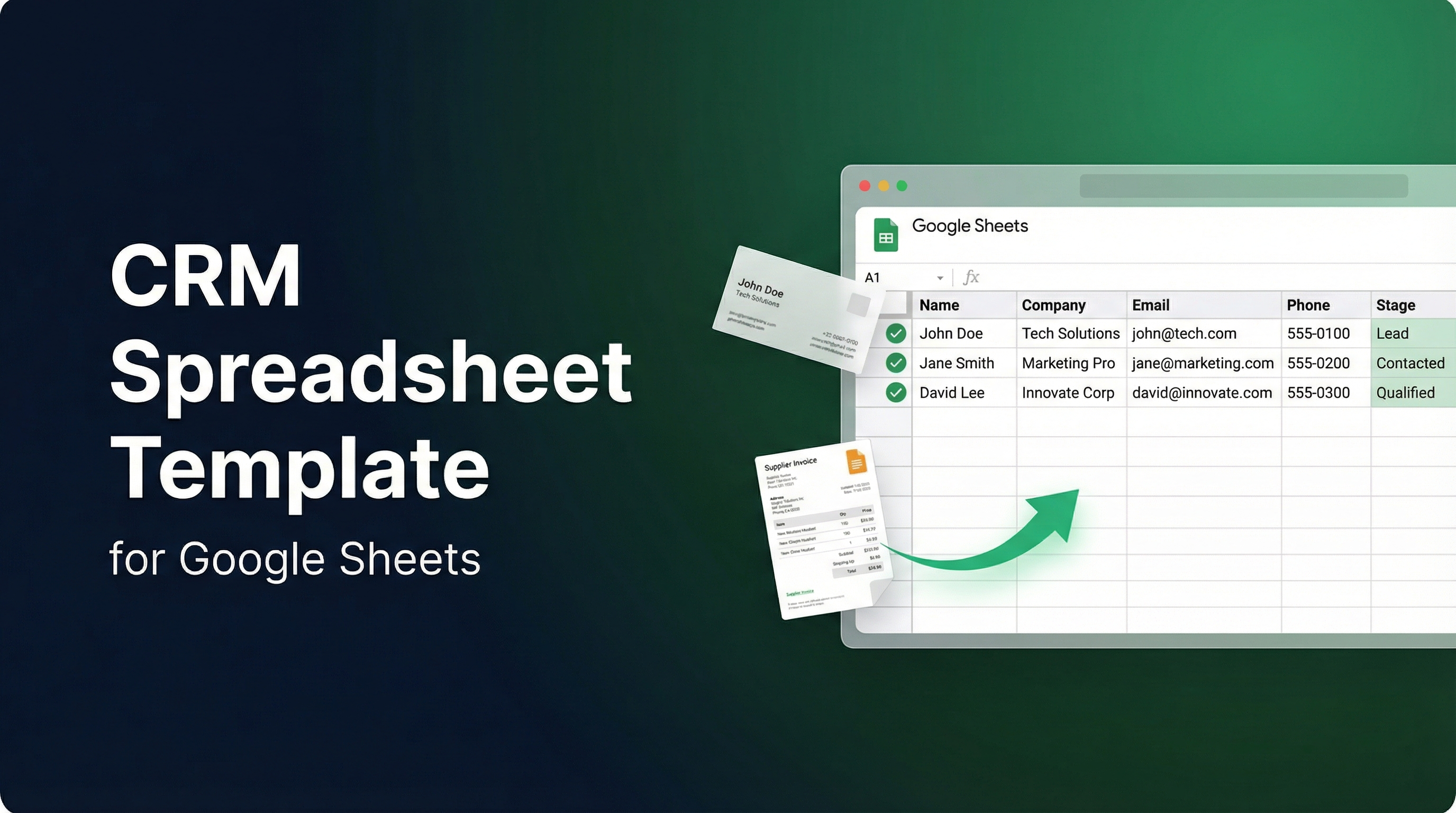
Most Google Sheets CRM templates have the same fatal flaw: they're empty. You download one, stare at the blank rows, and then never actually type in your contacts. The template wasn't the hard part — the data entry is.
A CRM spreadsheet template only works if updates are easy enough that you actually keep doing them. Business cards pile up in bags, contact details hide in invoice PDFs, and email signatures never make it into the sheet.
This guide covers a practical CRM template for Google Sheets, the columns that matter, and how to auto-fill contact rows from real documents using Spreadsheet Agent.
Why Most Google Sheets CRMs Get Abandoned
A Google Sheets CRM is flexible — that's why people start there. But contact management breaks down when entry is manual and inconsistent:
- No capture routine: Contacts come from cards, emails, PDFs, and notes, but there's no repeatable way to move them into rows.
- Too many fields too early: If every row needs 20 columns, people skip updates.
- Follow-up dates are missing: Without a next action date, your sheet becomes a list — not a working CRM.
- Data quality drifts: Different naming styles and missing values make filtering unreliable.
The fix: keep the template lean, extract what you can from source documents, and only ask humans to review and adjust.
Columns Your CRM Spreadsheet Template Needs
When building a CRM spreadsheet template, start with the fields you'll use every week. You can always add more later.
| Column | Why it matters | Notes |
|---|---|---|
| Full Name | Core identifier for every contact row | Keep one person per row |
| Company | Useful for B2B grouping and filtering | Use the commonly known name consistently |
| Role / Title | Helps prioritize decision-makers | Leave blank if not clearly stated |
| Work Email | Primary follow-up channel | One email per column |
| Phone | Backup contact method | Normalize formatting after review |
| Stage | Where the relationship stands | New, Contacted, Qualified, Customer |
| Last Contact Date | Shows recent activity | Use a consistent date format |
| Next Follow-Up | Most important operational field | If this is empty, deals go cold |
| Source | Tracks where contacts came from | Conference, referral, invoice, inbound |
| Notes | Context for better follow-up | Keep short and specific |
Tempted to start with 25 columns? Don't. A lean Google Sheets CRM template that gets updated beats a perfect one no one maintains.
Auto-Fill Your CRM from Real Documents
Manual typing is the bottleneck that kills every customer tracking spreadsheet. Spreadsheet Agent removes most of that by extracting contact details from the documents you already have.
Business cards from events and meetings
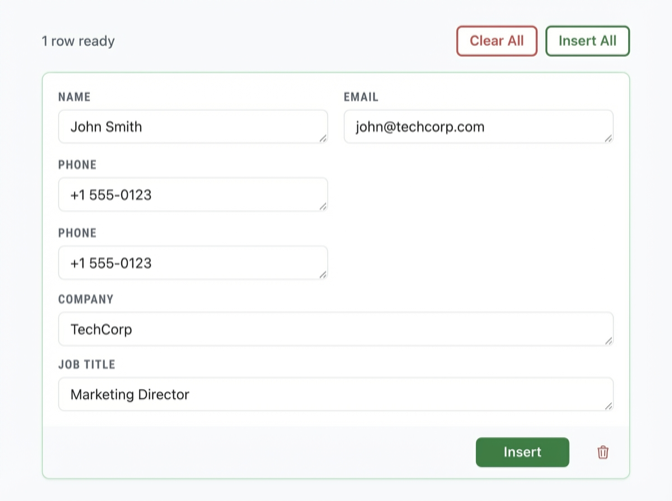
Upload card photos and AI extracts name, company, email, phone directly into your CRM columns. The full workflow is in this guide on scanning business cards to Excel or Google Sheets. For any image source, see extracting data from images.
Invoices with vendor and client contacts
Invoices contain names, companies, emails, and phone numbers you'd otherwise retype. Capture those contacts into your CRM spreadsheet automatically — see invoice tracking in Google Sheets and PDF to spreadsheet extraction.
Email threads and attachments
Contact details trapped in email signatures and attached files? Save the relevant document, then extract name, company, and contact fields into your sheet. This keeps your contact management spreadsheet aligned with your actual communication history.
Collecting many files over time? Set up a clean folder structure early — this guide on organizing file uploads for Google Sheets helps keep source documents tied to the right rows.
Set Up a Simple CRM in Google Sheets
For the full configuration walkthrough, see the Google Sheets AI agent setup guide. The short version:
- Create a CRM agent and connect your Google Sheet.
- Define your columns and add extraction instructions where needed.
- Upload a sample document — card image, PDF, or saved message file.
- Review the extracted row, correct anything off, then insert.
Start with one document type first, then add more once your column mapping is reliable.
CRM Template Prompt — Copy and Paste
"Build a CRM spreadsheet template for Google Sheets with columns: Full Name, Company, Role, Work Email, Phone, Stage, Last Contact Date, Next Follow-Up Date, Source, and Notes. I will upload business card photos, invoice PDFs, and saved email documents. Extract exact values where available and leave fields blank when data is missing."
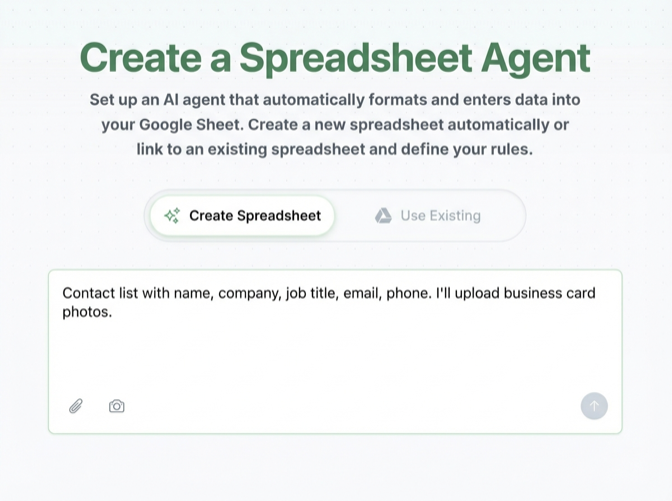
This gives you a strong baseline. After your first few uploads, adjust stage values and formatting rules so the sheet matches how you actually sell.
When to Outgrow a Spreadsheet CRM
A Google Sheets CRM is practical when your list is manageable and your process is lightweight — for most solo operators and small teams, that means under 100 active contacts.
Signs you've outgrown a sheet:
- You need permissions and activity history across a larger team.
- You manage several sales pipelines with different workflows.
- Follow-ups and handoffs are getting missed because ownership is unclear.
- Reporting takes more time than the outreach itself.
Until then, a focused CRM template for Google Sheets plus document extraction is the fastest way to keep contact data current without adding a heavy system too early.