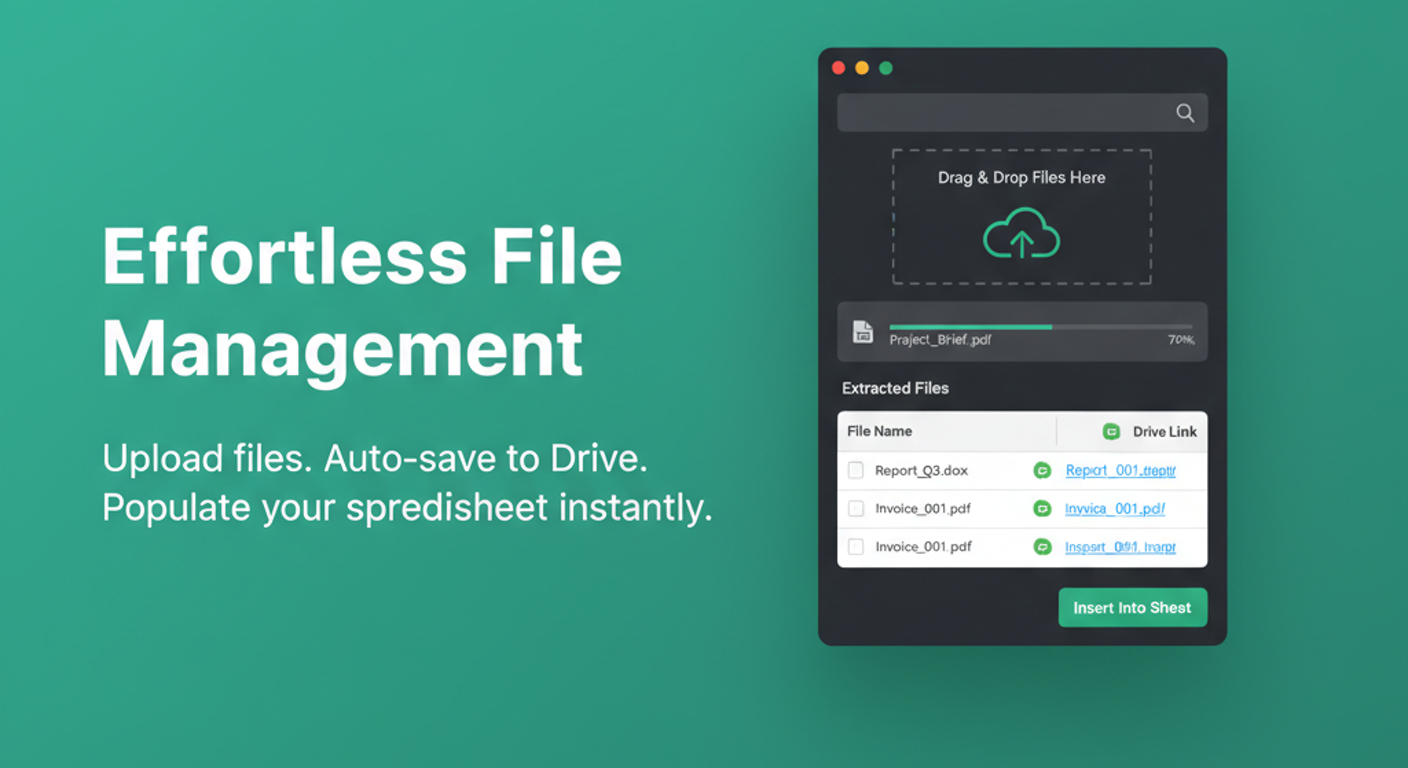
You're tracking inventory, properties, or projects in Google Sheets—but each row needs files. Product photos. Contracts. Receipts. So you create Drive folders manually, upload files one by one, copy links, paste them into cells... for every single row. There's a better way.
Introducing Asset Folder: Automatic File Organization for Spreadsheet Rows
Spreadsheet Agent's Asset Folder feature lets you upload files directly when adding data to your sheet. No manual folder creation. No copying links. Files go straight to Google Drive, automatically organized by row—and the folder link appears in your spreadsheet as part of the same workflow.
How to Enable Asset Folder
Setting up file storage for your spreadsheet takes seconds. When creating a new spreadsheet in Spreadsheet Agent, simply mention that you need a folder for files in your description.
For example:
"Property listings with address, price, bedrooms, and I need a folder to store photos and documents for each property"
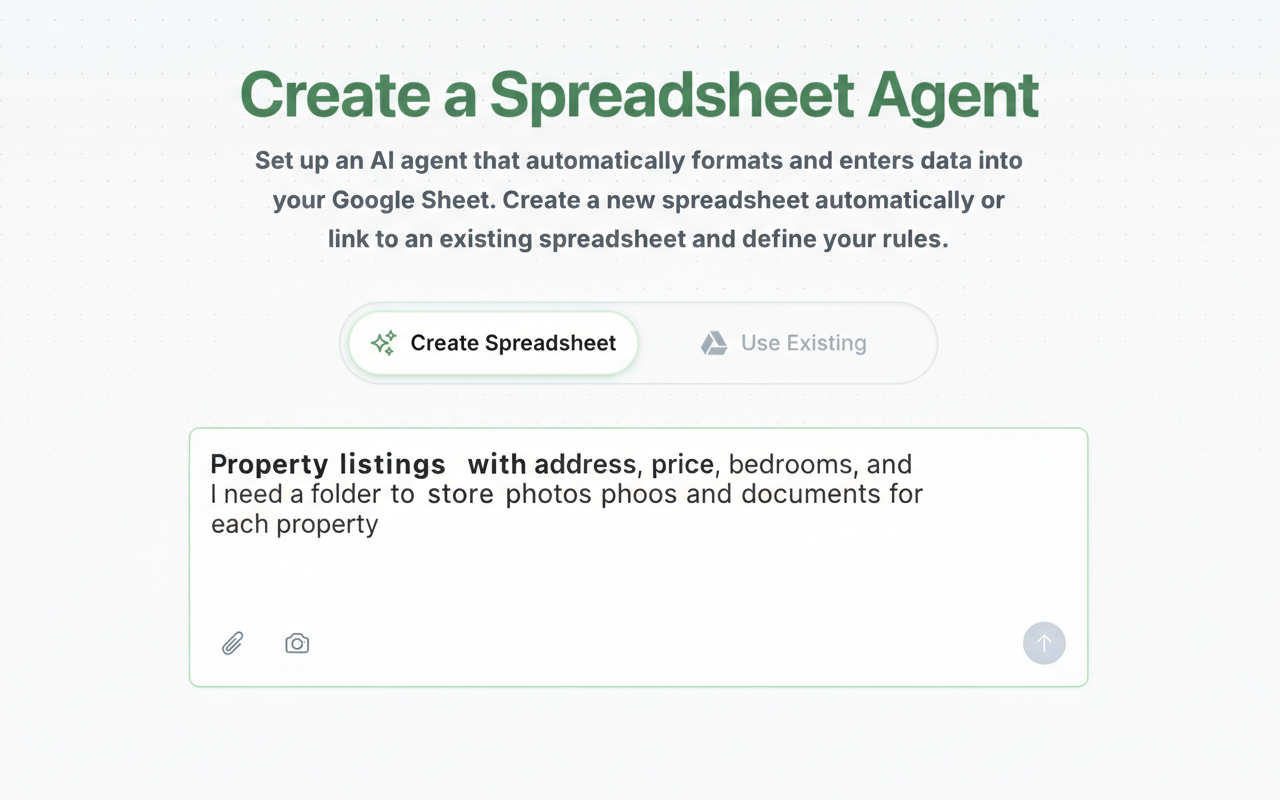
Spreadsheet Agent automatically adds an ASSET_FOLDER_URL column to your schema. This special column stores the Google Drive folder link for each row's files.
That's it—no configuration, no settings to toggle. Just describe what you need.
How It Works
1. Drag and Drop Your Files
When you're adding a new row through Spreadsheet Agent, simply drag and drop files—images, PDFs, documents, anything. Upload as many as you need for that row.
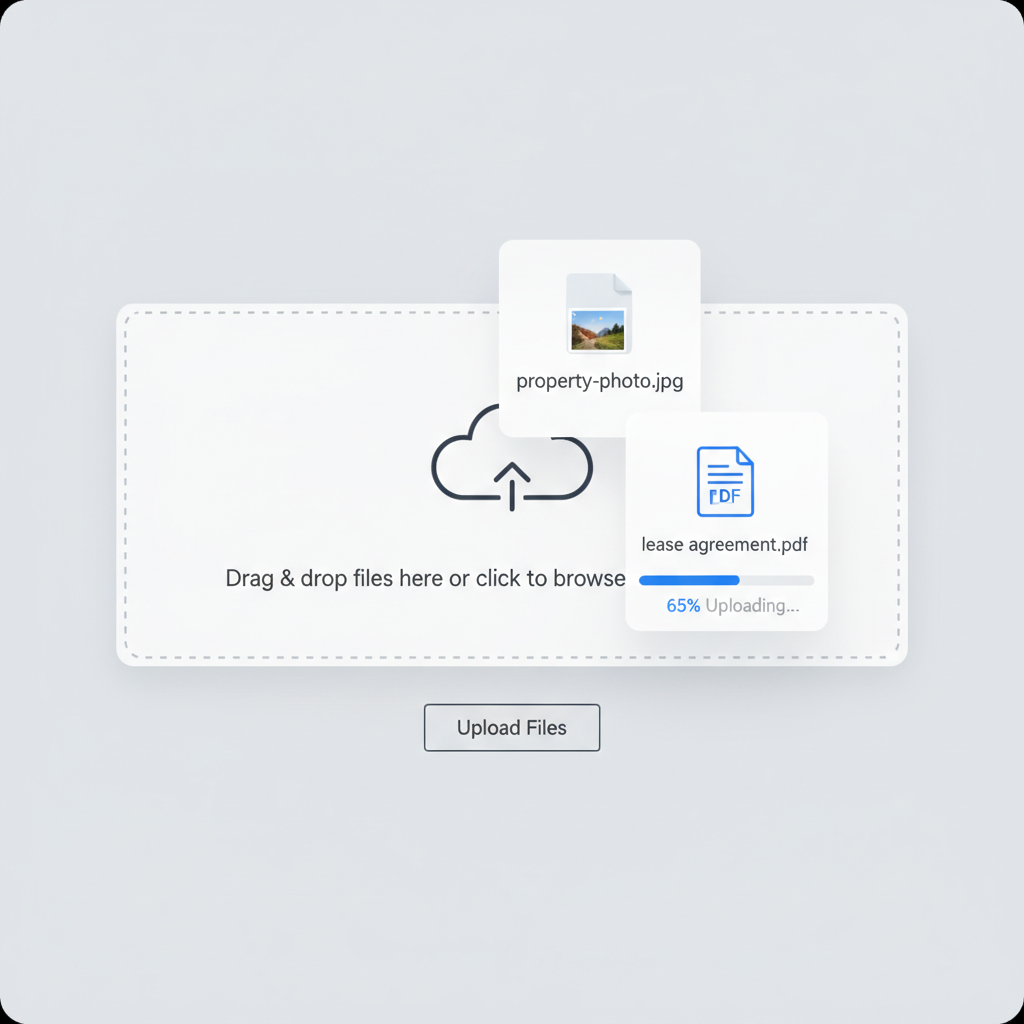
2. Files Auto-Organize in Google Drive
Behind the scenes, Spreadsheet Agent creates a clean folder structure in your Drive. Your spreadsheet gets a parent folder, and each row gets its own subfolder inside:
Each row gets its own folder. Files stay organized without any manual work. The ASSET_FOLDER_URL column in your spreadsheet links directly to each row's folder.
3. Folder Link Appears in Your Sheet
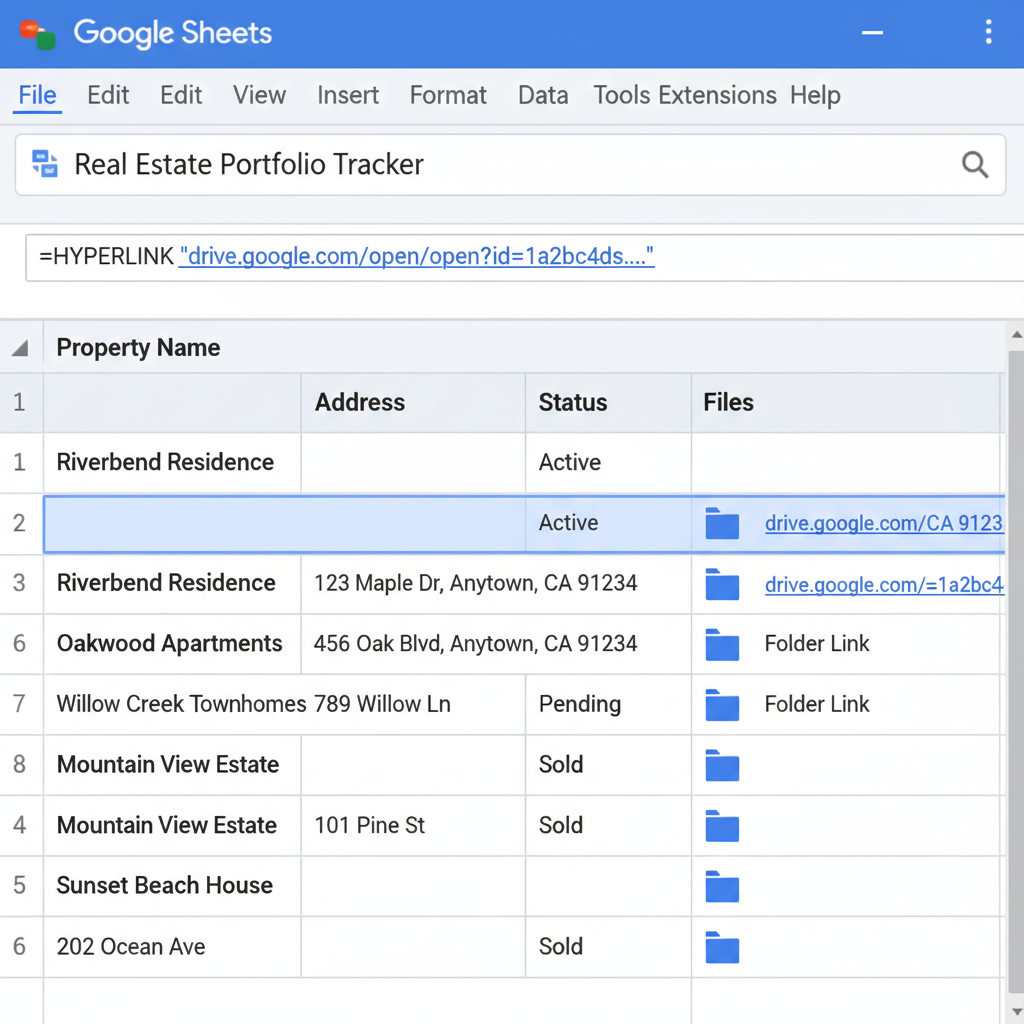
When the row is inserted, a clickable Drive folder link is automatically added. One click opens all files for that row. Share your spreadsheet and collaborators can access the right files quickly.
4. Folders Auto-Rename to Match Your Data
Here's the magic: after insertion, the folder automatically renames itself based on your row data. If your row has a "Property Name" of "123 Main Street"—that becomes the folder name. No generic "Row_12345" folders cluttering your Drive.
Why This Matters
- Zero manual organization — Stop creating folders and copying links for every row
- Any file type — Images, PDFs, documents, videos—whatever your workflow needs
- Files stay in YOUR Drive — Full ownership and control, standard sharing permissions
- Smart naming — Folders named after your actual data, not random IDs
- Scales effortlessly — 10 rows or 1,000 rows, same simple workflow
Perfect For
- Real estate — Property photos, contracts, inspection reports per listing
- E-commerce — Product images and spec sheets per SKU
- Project management — Deliverables and assets per task or milestone
- Expense tracking — Receipt photos and invoices per transaction
- Inventory — Product documentation per item
Stop Organizing Files. Start Using Them.
Manual file organization is busywork. With Asset Folder, you upload files once and they're automatically organized, linked, and named—ready for you and your team to access from any row in your spreadsheet.
Upload files. Get organized folders. Access everything with one click.
When you are ready, open Spreadsheet Agent and create a sheet with an ASSET_FOLDER_URL column.