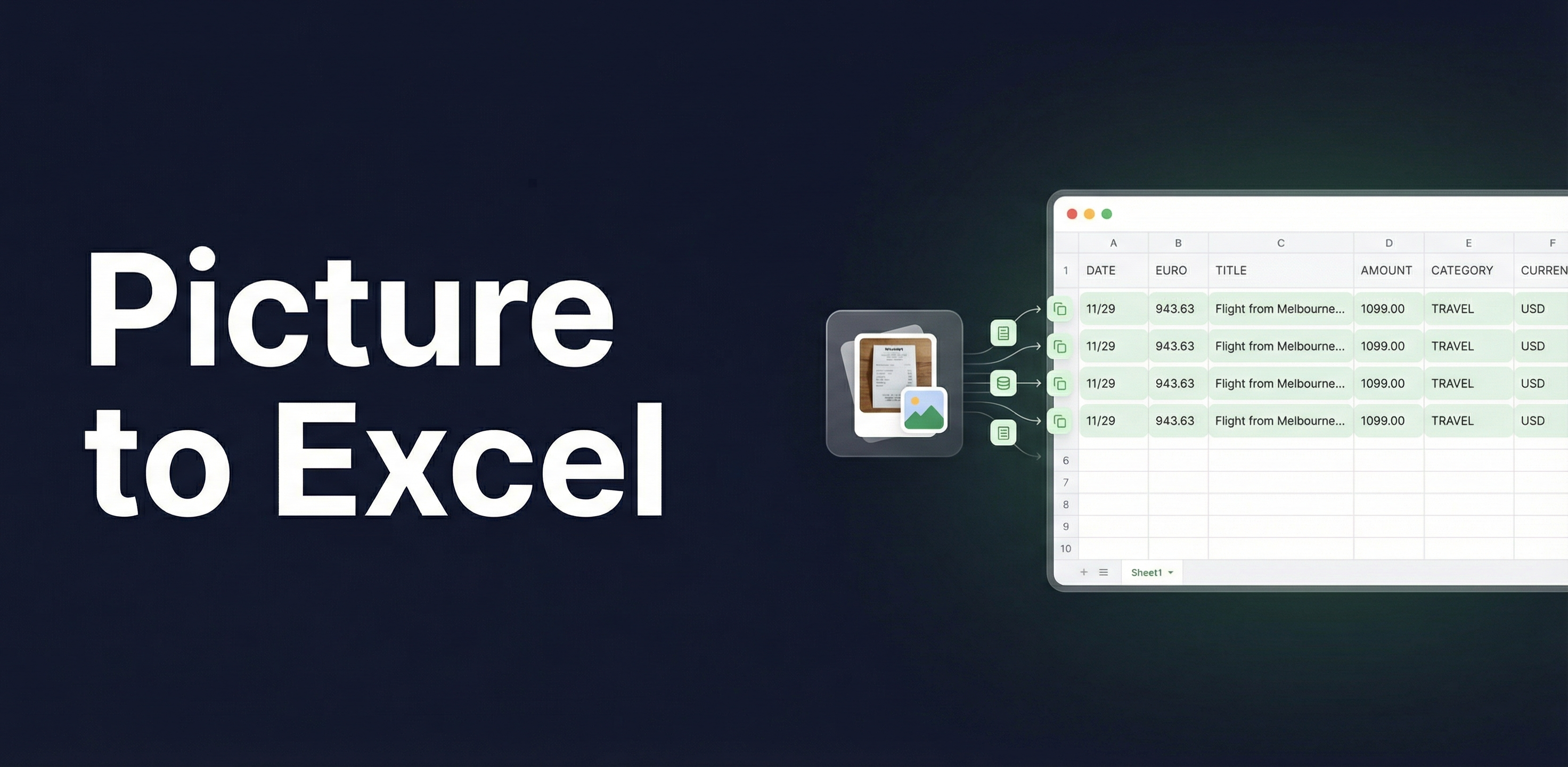
You have a picture with data you need in a spreadsheet. Maybe it's a screenshot of a table, a photo of a whiteboard, or an image someone texted you. Retyping it all manually isn't the answer.
Spreadsheet Agent lets you convert a picture to Excel or Google Sheets quickly. Upload your image, AI extracts the data, you review it, and it pushes straight to your spreadsheet—formatted and ready to use.
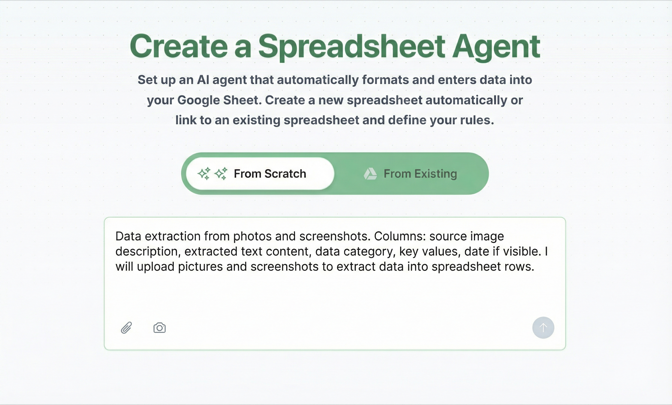
Step 1: Create Your Image-to-Spreadsheet Agent
Open Spreadsheet Agent and describe what kind of data you'll be extracting from pictures:
"Extract data from photos and screenshots. Columns: description, extracted text, data category, key values, and date if visible. I'll upload images to pull data into spreadsheet rows."
Spreadsheet Agent generates your column structure automatically based on your description. You can also connect an existing Google Sheet or Excel file if you already have a spreadsheet started.
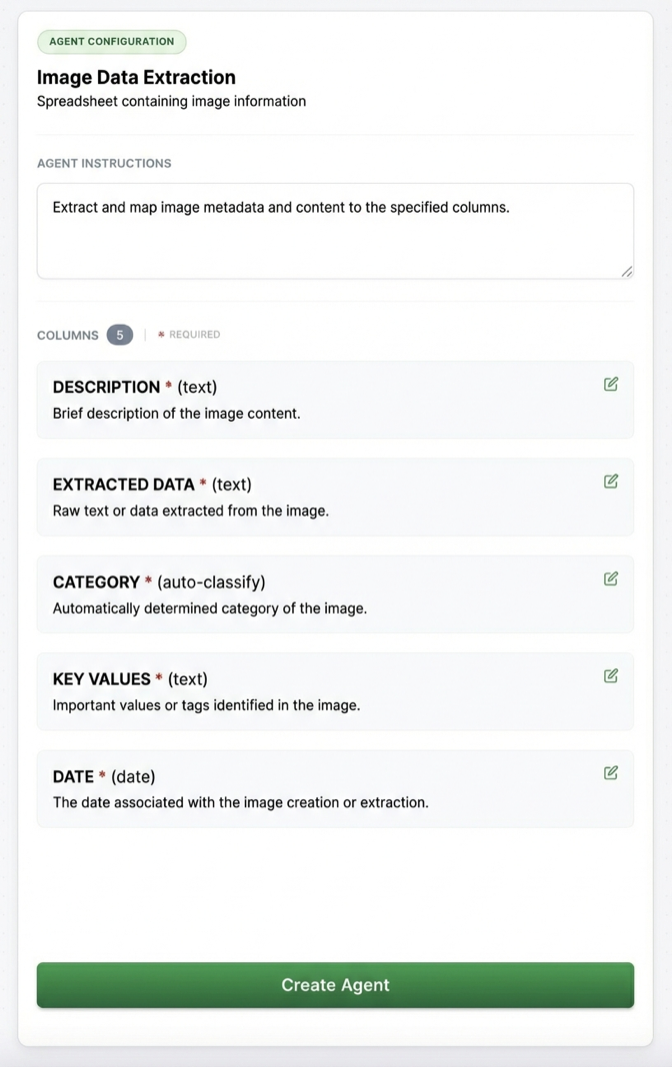
Step 2: Configure Your Extraction Columns
After creation, you'll see your column configuration. This is where you tell the AI exactly how to extract and format data from your pictures.
Click any column to add specific extraction instructions:
- Description — Briefly describe what's in the image
- Extracted Text — Pull all visible text from the picture
- Category — Auto-classify the type of data (receipt, table, chart, etc.)
- Key Values — Extract numbers, totals, dates, or specific data points
- Date — Find any date shown in the image
Customize the columns for your specific use case. Extracting receipts? Add columns for vendor, amount, and tax. Converting screenshots of tables? Mirror the table's column structure.
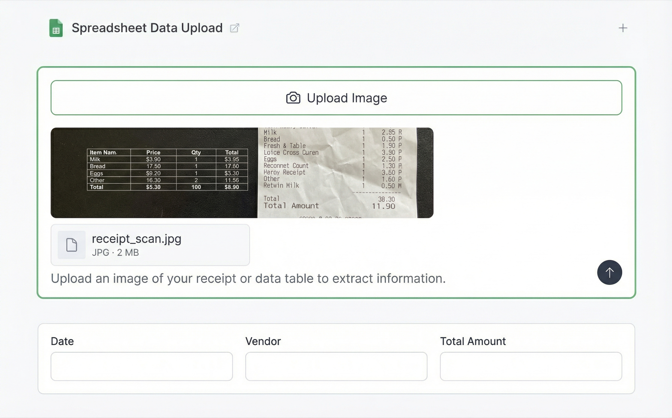
Step 3: Upload Your Picture
Go to your agent and upload the image you want to convert to spreadsheet data. Spreadsheet Agent accepts:
- Photos — camera shots of documents, whiteboards, printed tables
- Screenshots — screen captures of data tables, reports, dashboards
- Scanned images — scanned documents, forms, or records
AI reads the image, identifies the data, and maps it to your configured columns. It handles messy photos, skewed angles, and different image qualities—no need for a perfectly cropped scan.
Step 4: Review and Insert to Excel or Google Sheets
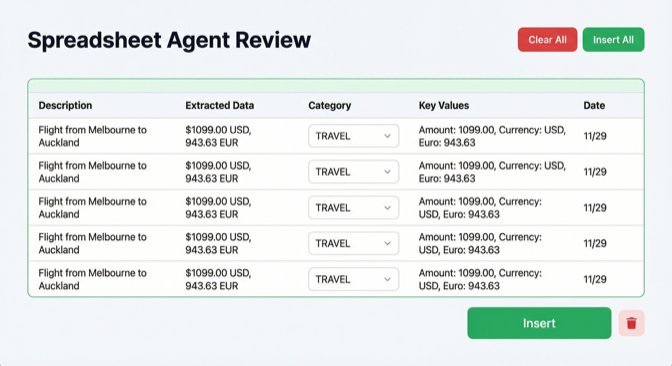
Before anything touches your spreadsheet, you see a preview of the extracted data. Check that:
- Text was read correctly (no OCR errors)
- Numbers and dates are formatted properly
- Data is in the right columns
- Nothing important was missed
Edit any field inline if something looks off. Then click Insert—your data appears in Google Sheets or Excel quickly.
What You Can Convert: Image to Spreadsheet Use Cases
The same workflow handles virtually any image-to-spreadsheet conversion. Here are the most common:
Convert Table Image to Excel
Got a screenshot of a data table with no export button? A photo of a printed report? Spreadsheet Agent reads the table structure from the image and maps it directly to Excel or Google Sheets columns. Works with web tables, PDF screenshots, dashboard exports, and printed tables—anything with rows and columns the AI can identify.
Extract Table from Image
The AI doesn't just OCR raw text—it understands table structure. Upload an image containing a table, and it extracts each cell into the correct row and column. This handles crooked photos, merged cells, and tables with inconsistent formatting that would break simple OCR tools.
Scan to Google Sheets
Point your phone at a printed document—receipt, invoice, form, price list—and upload the photo. Spreadsheet Agent extracts the data and pushes it directly to Google Sheets. Set up your columns once (vendor, amount, date, line items) and every new scan follows the same structure.
Convert Photo to Excel
Photos of whiteboards after meetings. Handwritten notes from a brainstorm. A picture of a menu you want to catalog. A conference badge you need in your CRM. Any photo with structured or semi-structured data becomes a spreadsheet row—no retyping, no copy-paste errors.
Image to CSV Export
Need the data in CSV format rather than a live spreadsheet? Extract from your image into Google Sheets, then export as CSV. This works well for bulk imports into other tools—CRMs, databases, accounting software—where CSV is the standard import format.
OCR to Spreadsheet for Forms and Documents
Registration forms, surveys, order sheets, scanned contracts—any document with fields that need to land in a spreadsheet. The AI reads the form fields from the image and maps them to your configured columns. Process a stack of forms with the same agent, and every extraction follows your column structure.
Tips for Converting Screenshots to Excel
Image quality matters:
- Good lighting, no glare or shadows on printed documents
- Screenshot at full resolution—don't resize before uploading
- Make sure text is readable (not blurry or cut off)
Get better extractions:
- Add column instructions that match your image type (e.g., "This is a receipt—extract vendor name, line items, and total")
- For tables in images, describe the expected columns so AI knows what to look for
- Use specific date formats in your instructions ("Format dates as MM/DD/YYYY")
Handle tricky images:
- Photos at angles still work—AI compensates for skew
- Multi-language images are supported
- For handwritten text, expect to review more carefully
Frequently Asked Questions
How do I convert a picture to an Excel spreadsheet?
Upload your picture to Spreadsheet Agent, and AI extracts the data into structured columns. You review the extraction, then click Insert to push it directly to your Excel file or Google Sheet. No manual data entry needed—the AI reads text, numbers, and dates from the image automatically.
Can you convert an image to Google Sheets?
Yes. Spreadsheet Agent connects directly to Google Sheets. Upload any image—photo, screenshot, or scan—and the extracted data pushes to your connected Google Sheet. You configure the columns once, then just upload and review for each new image.
How do I convert a screenshot to Excel?
Take your screenshot, upload it to Spreadsheet Agent, and the AI reads the visible data. This works especially well for screenshots of data tables, reports, and dashboards that don't offer a CSV export. The extracted data maps to your spreadsheet columns automatically.
Is there a way to convert a photo to a spreadsheet without retyping?
That's exactly what Spreadsheet Agent does. Upload a photo of any document—receipt, form, printed table, whiteboard—and AI extracts the data into spreadsheet rows. You review before inserting, so you catch any OCR errors without doing the actual data entry yourself.
What image formats work for picture-to-Excel conversion?
Spreadsheet Agent accepts common image formats including JPG, PNG, and screenshots from any device. The key factor is image quality—clear, well-lit images with readable text give the best extraction results. Blurry or very low-resolution images may need more manual corrections.
Stop Retyping Data from Images
Every picture you retype manually is time wasted on work a machine can do. Set up an extraction agent once, configure your columns, then just upload and review. Works with photos, screenshots, scans—any image with data you need in a spreadsheet.
When you are ready, open Spreadsheet Agent and run your first image extraction.