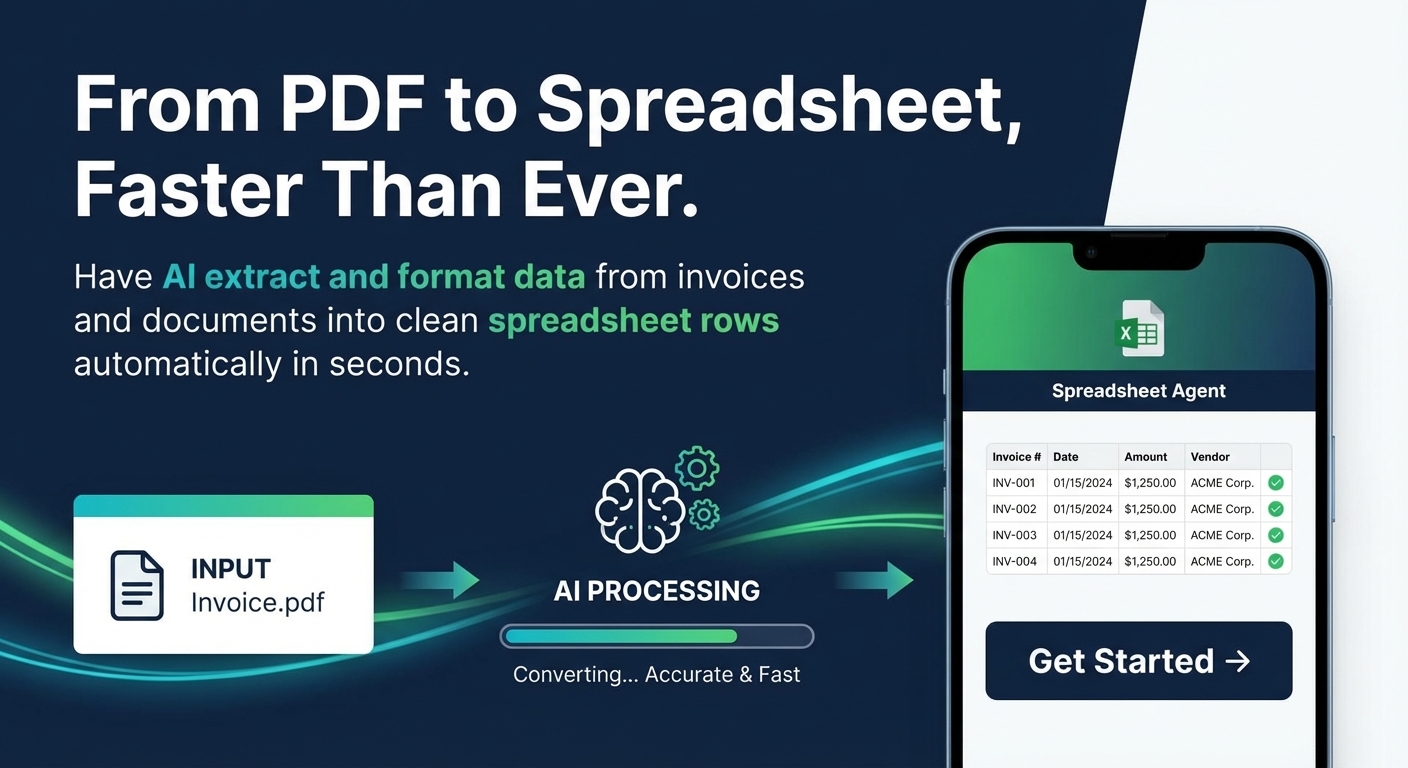
Copying data from PDFs into Google Sheets is tedious. You open the PDF, find the table, copy, paste, fix the columns, correct errors—then repeat for every file. Spreadsheet Agent handles this automatically: upload a PDF, AI extracts the data, you review it, and it pushes directly to your Google Sheet.
Whether you're converting invoices, receipts, bank statements, or any document with structured data, here's how to set up PDF extraction that actually works.
Step 1: Create Your PDF Extraction Agent
Open Spreadsheet Agent and describe what kind of PDF data you'll be extracting:
"Invoice processor with vendor name, invoice number, date, line items, subtotal, tax, and total. I'll upload PDF invoices from different vendors."
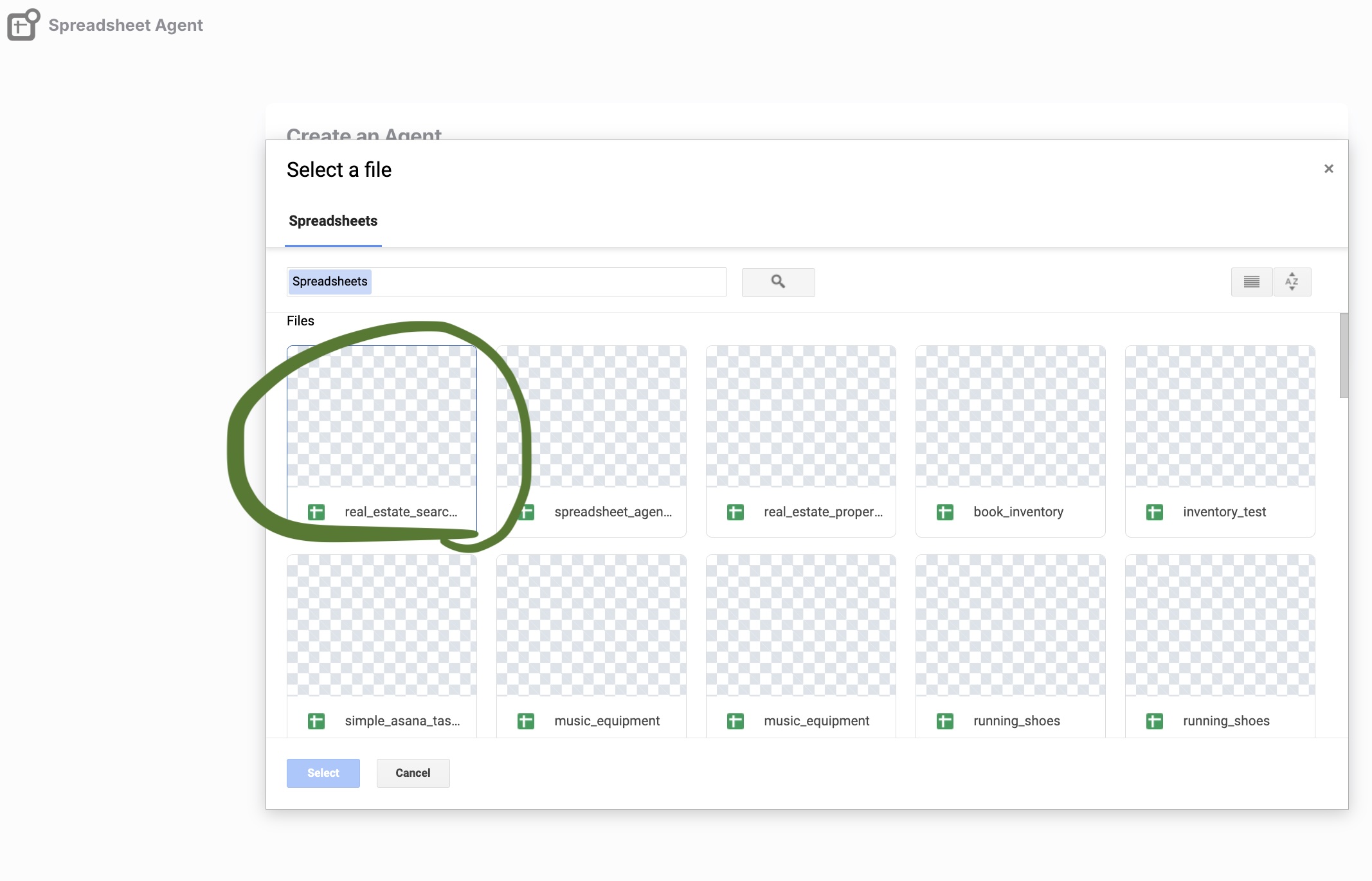
Spreadsheet Agent generates your column structure automatically. You can also connect an existing Google Sheet if you already have invoice or document tracking set up.
Step 2: Configure Your Column Mappings
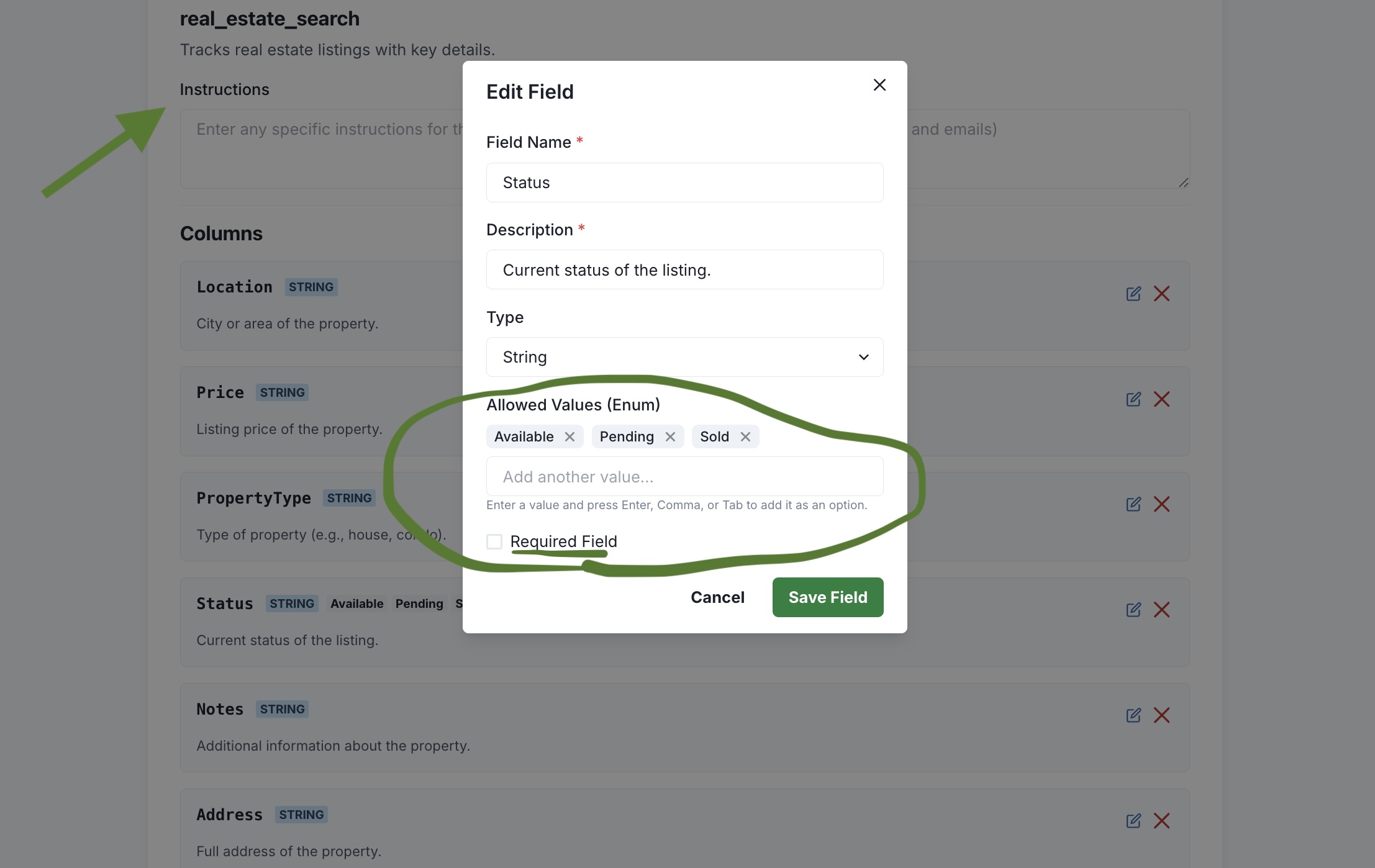
After creation, you'll see your column configuration. This is where you tell AI exactly how to interpret and format your PDF data.
For each column, click to edit and define:
- Invoice Number — Format: Text. Location hint: "Usually top-right of document, may say 'Invoice #' or 'Inv'"
- Vendor Name — Extract from: Letterhead, "Bill From", or header section
- Date — Format: YYYY-MM-DD for sorting. Priority: Invoice date > due date
- Line Items — Multiple rows per line item, or concatenate into single cell
Step 3: Handle Multi-Vendor PDFs
Different vendors format invoices differently. Add instructions that handle variations:
Extract vendor name from the "Bill From" or letterhead section.
For invoices from Amazon Business: look for "Sold by" field.
For utility bills: company name is usually in the logo/header.
If multiple dates appear, use the invoice date, not due date.
Now the same agent handles PDFs from any vendor without reconfiguring.
Step 4: Upload Your PDF
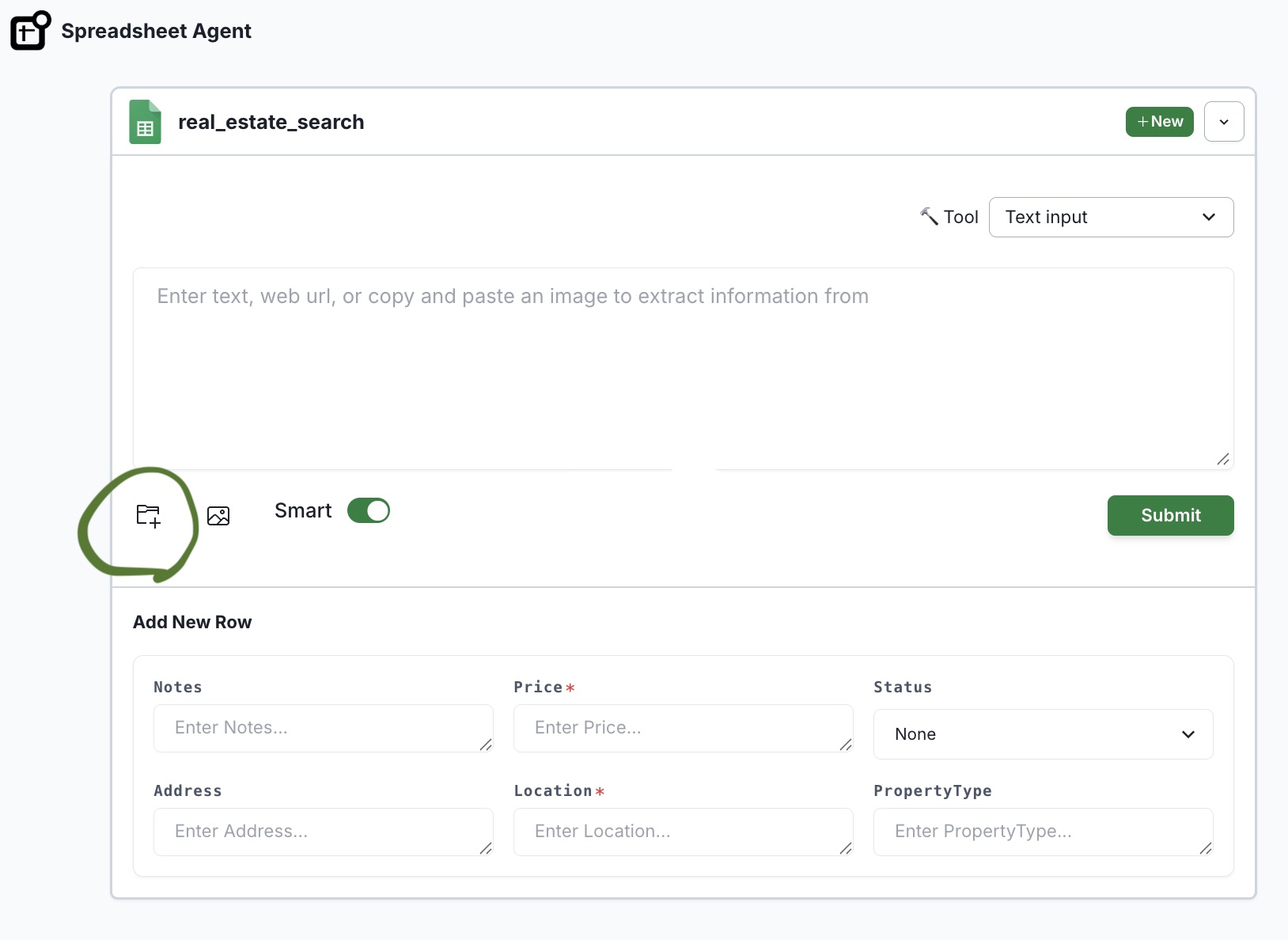
Go to your agent and drop in your PDF. Spreadsheet Agent processes text-based PDFs—invoices, statements, system-generated documents, and reports with structured data. Maximum upload size is 10MB per file.
AI reads the document structure and extracts each field into the appropriate column based on your configuration.
Step 5: Review and Insert to Google Sheets
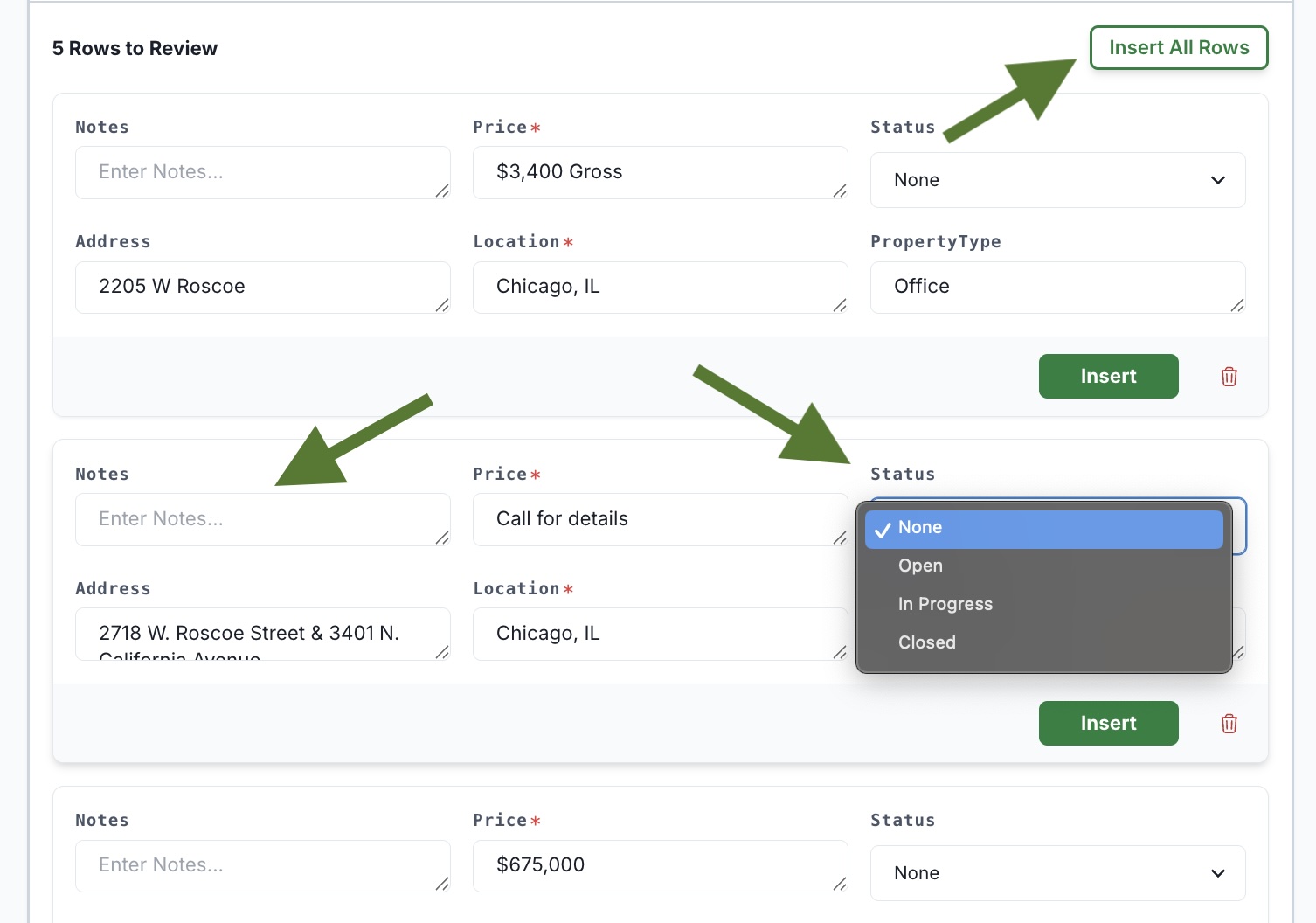
Before anything touches your Google Sheet, you see a preview of extracted data. Check that each field mapped correctly:
- Vendor name pulled from the right spot
- Amounts parsed correctly (no currency symbol issues)
- Dates in consistent format
- Line items split appropriately
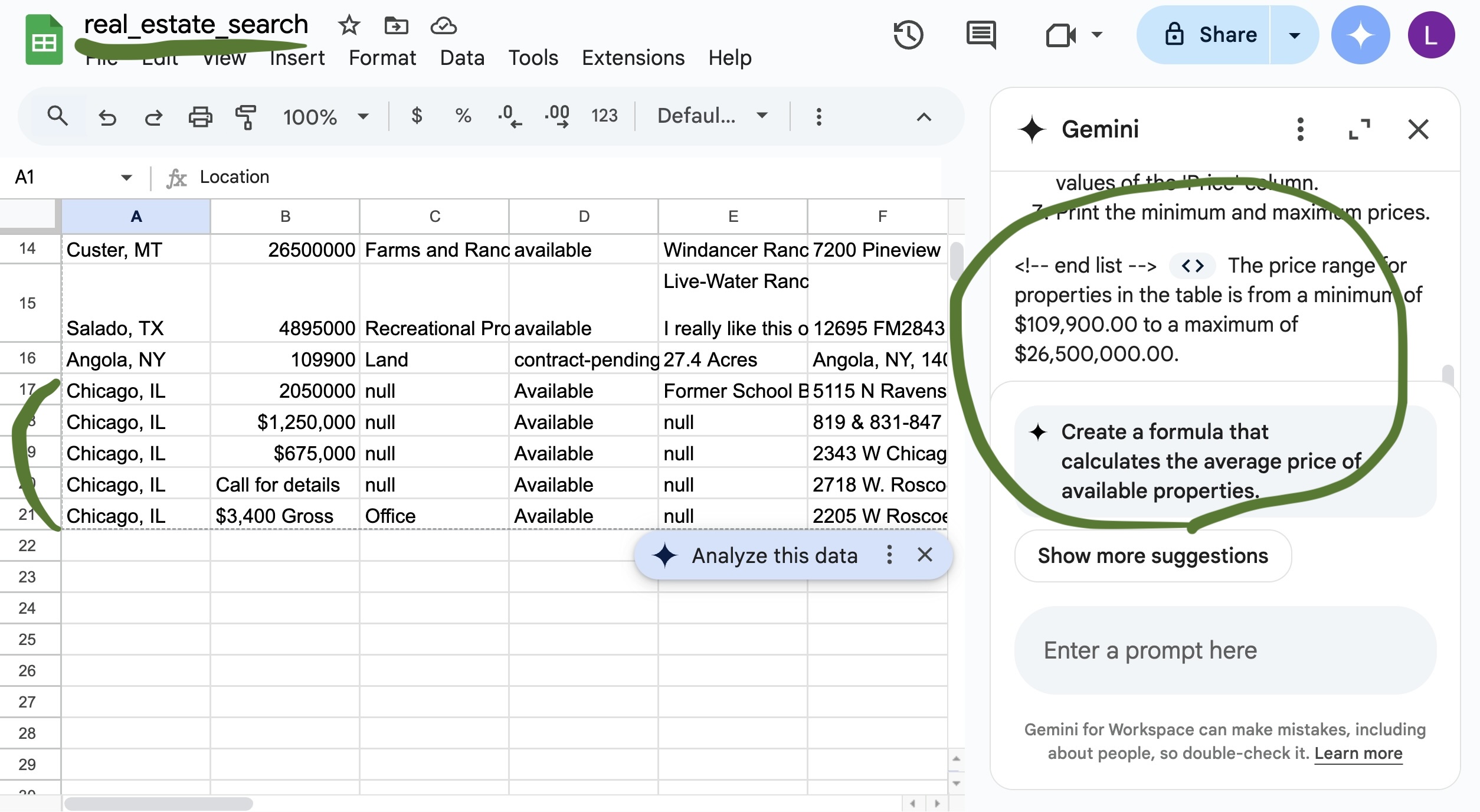
Edit any fields inline if needed. Then click Insert—your PDF data appears in Google Sheets quickly, properly formatted and ready to use.
Common PDF Types and How to Configure Them
Invoices
Columns: Vendor, Invoice #, Date, Description, Amount, Tax, Total
Tip: Add "If tax is not shown, leave Tax column empty" to avoid AI guessing
Receipts
Columns: Merchant, Date, Items, Total, Payment Method
Tip: Use column validation to keep categories consistent
Bank Statements
Columns: Date, Description, Debit, Credit, Balance
Tip: Set up "Create one row per transaction" for statement tables
Property Listings (Real Estate)
Columns: Address, Price, Beds, Baths, Sqft, MLS #
Tip: Use column validation to enforce number formats for price/sqft
Extraction Tips for Better Results
Be specific about locations:
- "Invoice number is in the top-right corner"
- "Total is the last row of the line items table, bold"
Handle ambiguity:
- "If both 'Amount Due' and 'Total' appear, use 'Amount Due'"
- "If vendor name is unclear, extract from the email domain"
Define fallbacks:
- "If a field can't be found, leave it blank rather than guessing"
- "If date format is ambiguous (MM/DD vs DD/MM), assume US format"
Why Direct-to-Google Sheets Matters
Most PDF converters export to Excel or CSV. Then you still have to:
- Open the export file
- Copy the data
- Paste into Google Sheets
- Fix formatting issues
- Delete the temporary file
Spreadsheet Agent skips all of that. Your PDF data goes directly into your connected Google Sheet—same column order, same formatting, every time.
Tool-by-Tool Comparison
| Tool | Review before export | Direct → Google Sheets | Handles scanned PDFs | Mobile friendly |
|---|---|---|---|---|
| Adobe Acrobat | ❌ | ❌ | ✅* | ✅ |
| iLovePDF | ❌ | ❌ | ✅* | ✅ |
| Docparser | ❌ | ❌ | ✅ | ✅ |
| Parabola | ❌ | ❌ | ✅ | ❌ |
| Quadratic | ❌ | ❌ | ✅ | ❌ |
| Klippa | ❌ | ❌ | ✅ | ✅ |
| Spreadsheet Agent | ✅ | ✅ | ✅ | ✅ |
*Requires additional OCR step
Frequently Asked Questions
Can you convert a PDF to Google Sheets directly?
Not with Google's built-in tools. Google Sheets can only import CSV, XLSX, and similar formats — not PDFs. Spreadsheet Agent bridges this gap by extracting data from your PDF and inserting it directly into your connected Google Sheet.
How do I extract a table from a PDF into Google Sheets?
Upload your PDF to Spreadsheet Agent. The AI reads the document structure, identifies tables and fields, and maps them to your configured columns. You review the extracted data, make any edits, then insert directly to your Google Sheet — no copy-paste required.
What types of PDFs work with Spreadsheet Agent?
Text-based PDFs work best: invoices, receipts, bank statements, system-generated reports, and documents with structured data. The maximum upload size is 10MB per file.
Does Google have a built-in PDF to Sheets converter?
No. Google Drive can open PDFs in Google Docs, but it doesn't preserve table structure. You'd still need to manually copy and reformat data into Sheets. There's no native PDF-to-Google-Sheets feature.
What if my PDF has multiple tables?
Spreadsheet Agent extracts structured data from your document based on the column configuration you set up. You review all extracted rows before inserting, so you can verify everything mapped correctly.
Stop Converting PDFs Manually
PDF to Google Sheets shouldn't require copy-paste. Set up your extraction agent once, configure your column mappings, then just upload and review. Works for invoices, receipts, statements, or any document with structured data.
When you are ready, open Spreadsheet Agent and run your first PDF extraction.