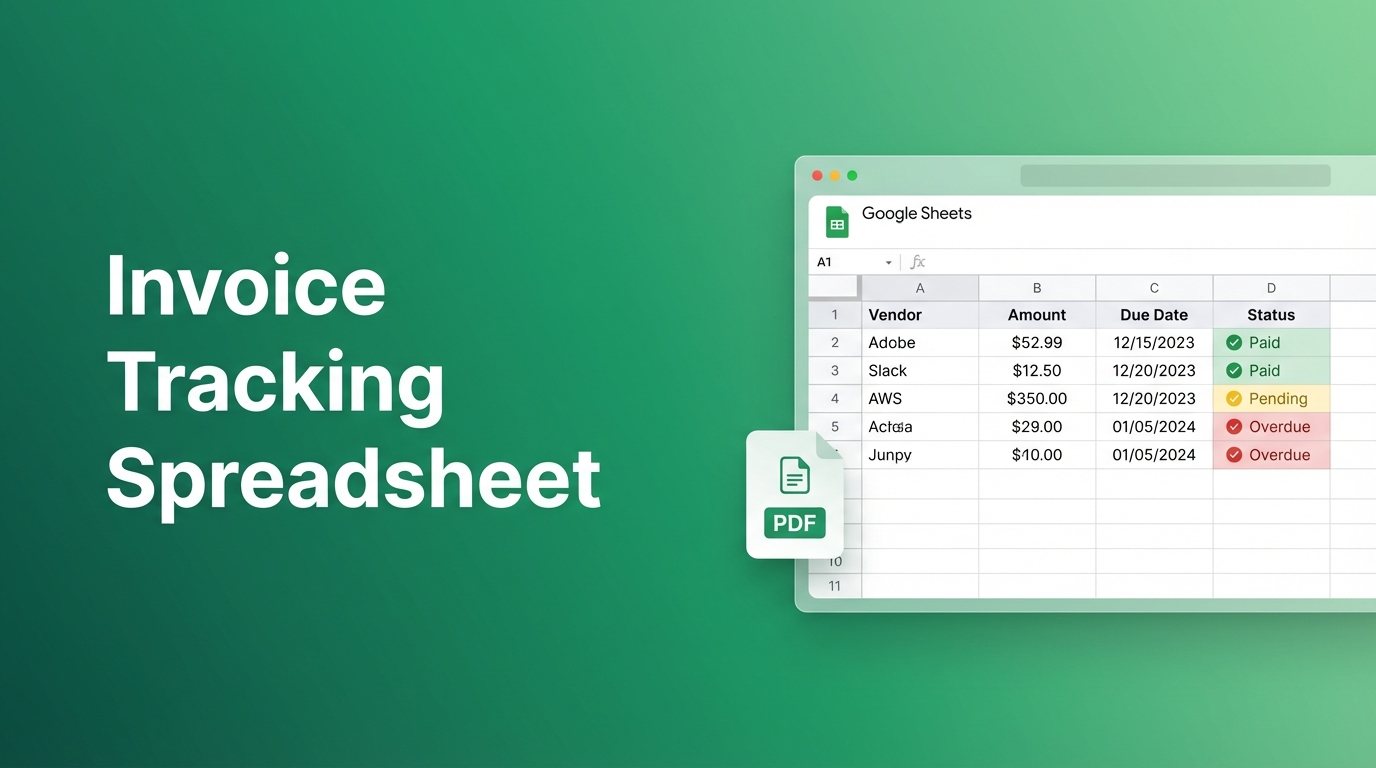
Every invoice that hits your inbox needs the same treatment: open it, find the vendor name, copy the amount, note the due date, paste it all into your tracking spreadsheet. Multiply that by dozens of invoices per month and you've got hours of mindless data entry.
There's a better way. With Spreadsheet Agent, you can build an invoice tracking spreadsheet in Google Sheets that extracts vendor, amount, due date, and payment terms directly from invoice PDFs or photos. Upload the invoice, review the extracted data, insert it into your tracker. Done.
Step 1: Create Your Invoice Tracker Agent
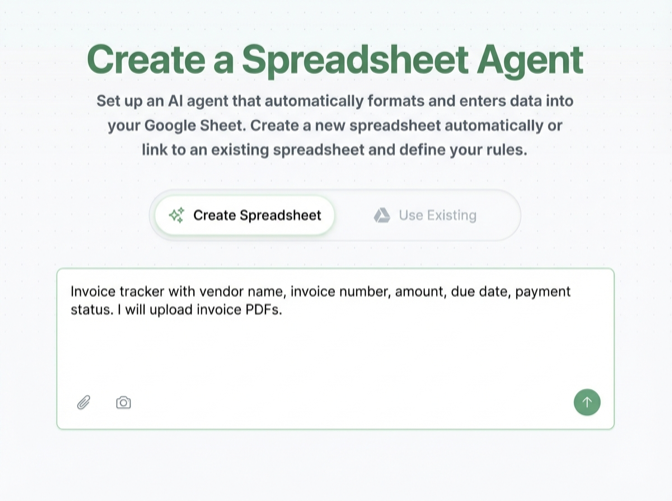
Head to Spreadsheet Agent and create a new agent. Describe what you want to track:
"Invoice tracker with vendor name, invoice number, amount, due date, and payment status. I'll upload invoice PDFs."
Copy this prompt to create your own Google Sheets invoice template—or tweak it to match your workflow. The AI generates your column structure automatically. You can also connect an existing sheet if you already have a tracker started.
Step 2: Configure Your Invoice Columns
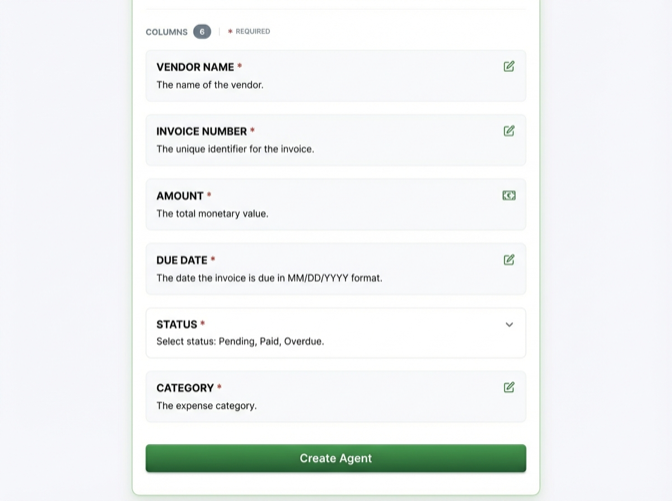
Review the suggested columns and customize for your needs. A solid invoice tracker typically includes:
- Vendor Name — Who sent the invoice
- Invoice Number — For reference and deduplication
- Amount — Total due (formatted as currency)
- Due Date — When payment is expected
- Status — Unpaid, Paid, Overdue (auto-classify or manual)
- Category — Optional: Software, Utilities, Supplies, etc.
Click any column to fine-tune extraction instructions. For example, tell it to always extract the "Amount Due" or "Total" field, not subtotals.
Step 3: Upload an Invoice
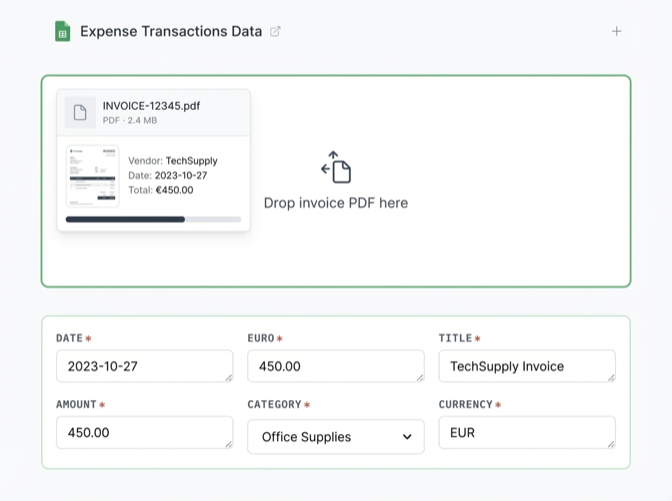
Now the easy part. Drop an invoice PDF into Spreadsheet Agent—or snap a photo of a paper invoice. The AI reads the document and extracts:
- Vendor name from the letterhead or "Bill From" section
- Invoice number from the header
- Amount from the total line
- Due date from payment terms
Works with standard invoices, utility bills, SaaS subscription receipts, contractor invoices—anything with structured billing information.
Step 4: Review and Insert to Your Tracker
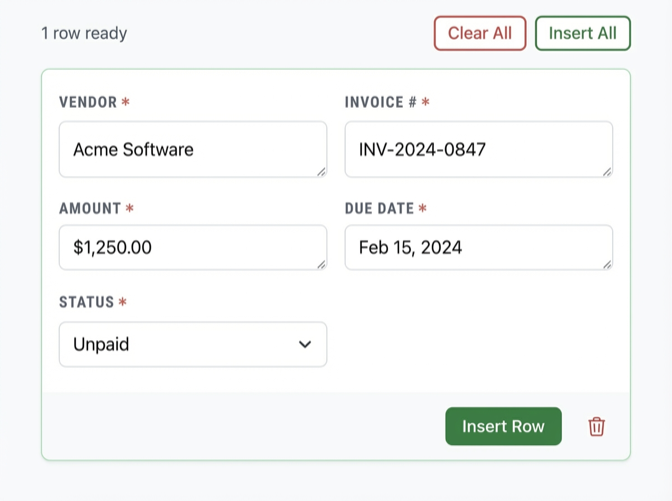
Before anything hits your spreadsheet, you see a preview of the extracted data. Check that the amount looks right, the vendor name is clean, and the due date parsed correctly.
Make any quick edits if needed, then click Insert. The row goes directly into your Google Sheets invoice tracker.
Organize Your Invoice Tracking Spreadsheet
Once your invoices are in Google Sheets, you have the full power of spreadsheet features:
- Filter by status — See all unpaid invoices at a glance
- Sort by due date — Prioritize what needs payment first
- Conditional formatting — Highlight overdue invoices in red
- SUM formulas — Total outstanding payables quickly
- Share with your accountant — Give view or edit access
The spreadsheet is yours. Spreadsheet Agent just eliminates the data entry bottleneck.
Why Track Invoices in Google Sheets?
Dedicated accounts payable software exists, but Google Sheets wins for many small businesses and freelancers:
- Free — No monthly subscription for yet another tool
- Familiar — Everyone knows how to use a spreadsheet
- Flexible — Add any columns you need (project codes, approval status, notes)
- Shareable — Collaborate with partners, bookkeepers, or accountants
- Portable — Export to Excel or CSV anytime
The only downside is manual data entry. That's what Spreadsheet Agent fixes—upload the invoice, get the data, skip the typing.
Frequently Asked Questions
How do I track invoices in Google Sheets?
Create a spreadsheet with columns for vendor, invoice number, amount, due date, and status. For each invoice, enter the relevant details. To automate this, use Spreadsheet Agent to extract data directly from invoice PDFs instead of typing it manually.
Can I extract invoice data from PDF to Google Sheets?
Yes. Spreadsheet Agent uses AI to read invoice PDFs and extract vendor name, amount, due date, and other fields. You review the extracted data and insert it into your Google Sheet with one click.
What's the best way to organize invoices in a spreadsheet?
Include columns for: Vendor, Invoice Number, Amount, Due Date, Status (Unpaid/Paid/Overdue), and optionally Category and Notes. Sort by due date to prioritize payments. Use conditional formatting to highlight overdue invoices.
How do I track unpaid invoices?
Add a "Status" column with values like Unpaid, Paid, and Overdue. Filter your spreadsheet to show only Unpaid rows. Use a formula to flag invoices past their due date automatically, or set up conditional formatting to highlight them.
Does this work with scanned paper invoices?
Yes. You can upload photos of paper invoices or scanned PDFs. Spreadsheet Agent's AI reads the text and extracts the relevant billing information just like it would from a digital PDF.
Stop Typing Invoice Data
Every minute spent copying vendor names and amounts is a minute wasted. Build your invoice tracking spreadsheet in Google Sheets, then let Spreadsheet Agent handle the data entry.
When you are ready, open Spreadsheet Agent and process your next invoice.