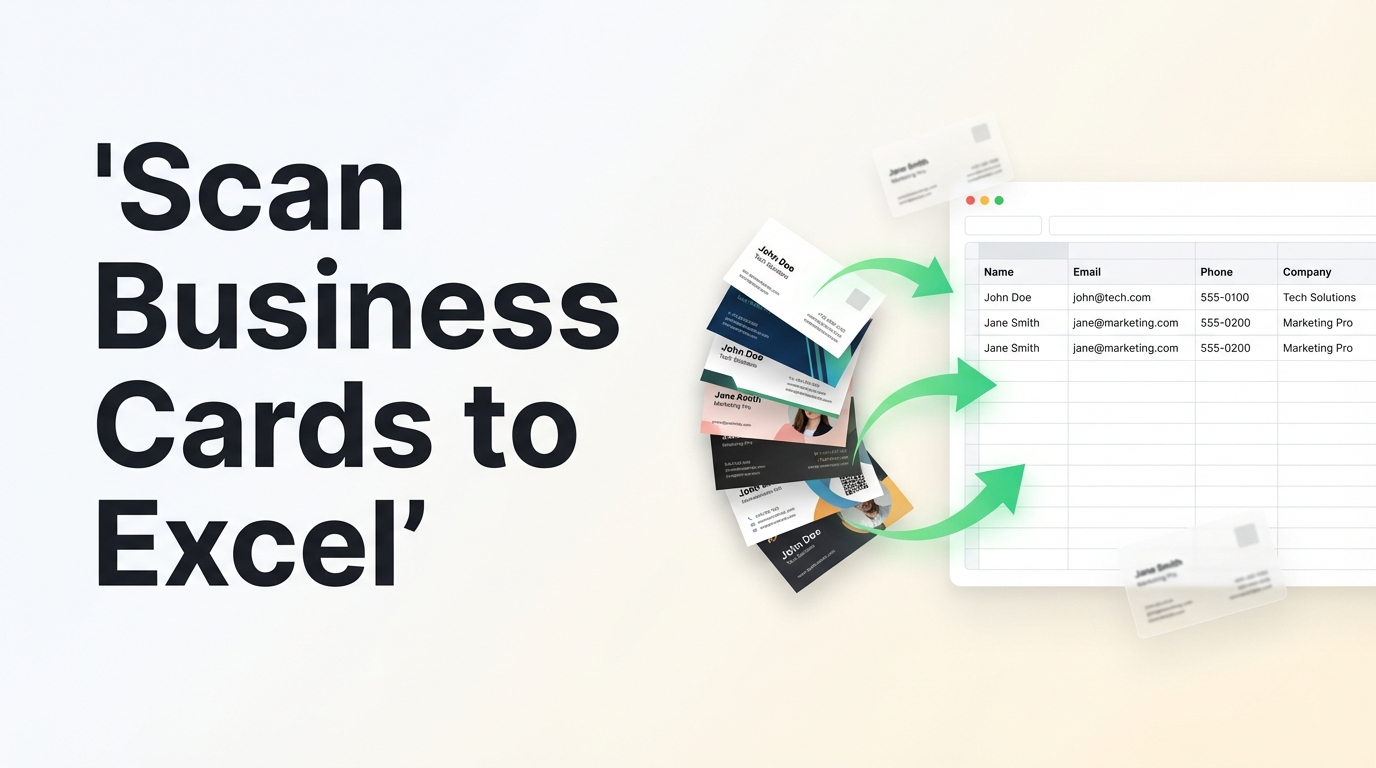
You come back from a conference with a stack of business cards. Now what? Type each one into a spreadsheet manually? Use a scanner app that dumps everything into a format you can't use? There's a better way.
Spreadsheet Agent lets you scan business cards directly to Excel or Google Sheets. Snap a photo, AI extracts the contact info, you review it, and it pushes to your spreadsheet—properly formatted, ready to use.
Step 1: Create Your Contact List Agent
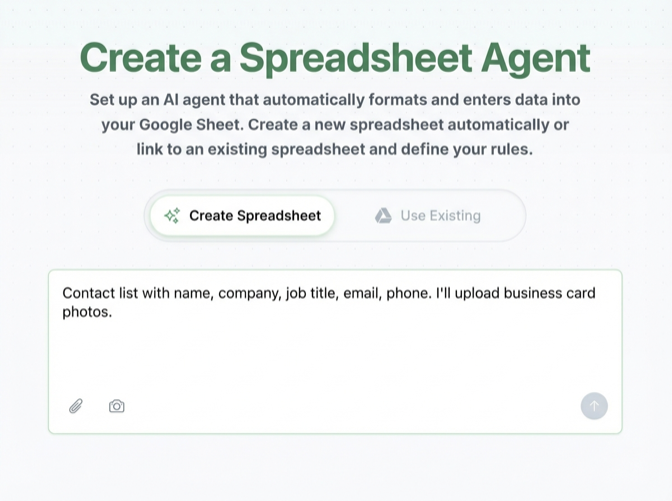
Open Spreadsheet Agent and describe what contact information you want to capture:
"Contact list with name, company, job title, email, phone number, LinkedIn URL, and notes. I'll upload photos of business cards."
Spreadsheet Agent generates your column structure automatically. You can also connect an existing Google Sheet or Excel file if you already have a contact database started.
Step 2: Configure Your Contact Columns
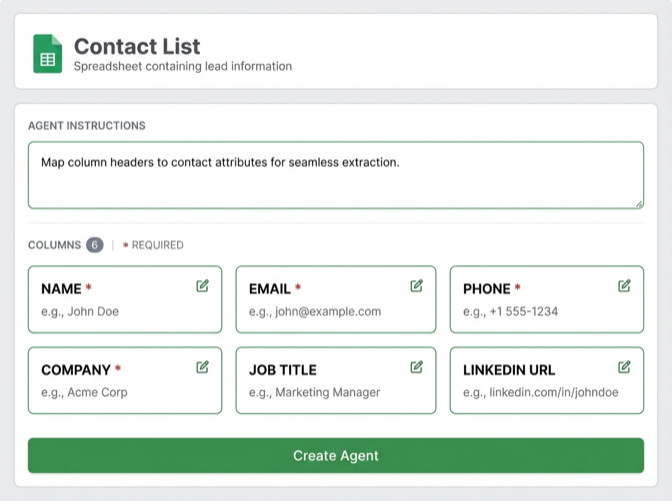
After creation, you'll see your column configuration. This is where you tell the AI exactly how to extract and format contact data from business cards.
For each column, click to edit and add extraction instructions:
- Name — Extract full name, format as First Last (not "Last, First")
- Email — Look for @ symbol, prefer primary/work email if multiple
- Phone — Include country code if shown, otherwise assume US (+1)
- Company — Extract from logo or text, don't include taglines
- Job Title — Extract what's shown, leave blank if unclear
Step 3: Handle Messy Business Cards
Business cards aren't standardized. Some have two phone numbers. Some list three email addresses. Some are in different languages. Add instructions that handle the edge cases:
Now your agent handles business cards from any source—conferences, trade shows, networking events—without manual cleanup.
Step 4: Scan Your Business Cards
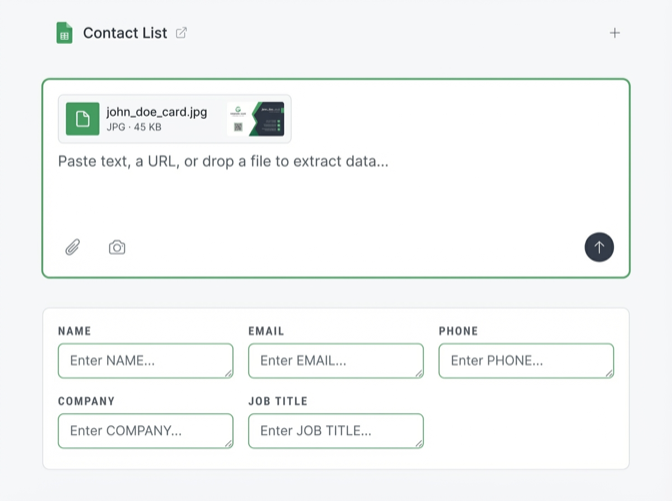
Go to your agent and upload your business card photos. You can:
- Snap photos directly from your phone
- Upload images from your camera roll
- Drop multiple cards at once for batch processing
AI reads the card layout, identifies each field, and maps it to your configured columns. Works with standard horizontal cards, vertical cards, and creative designs.
Step 5: Review and Insert to Your Spreadsheet
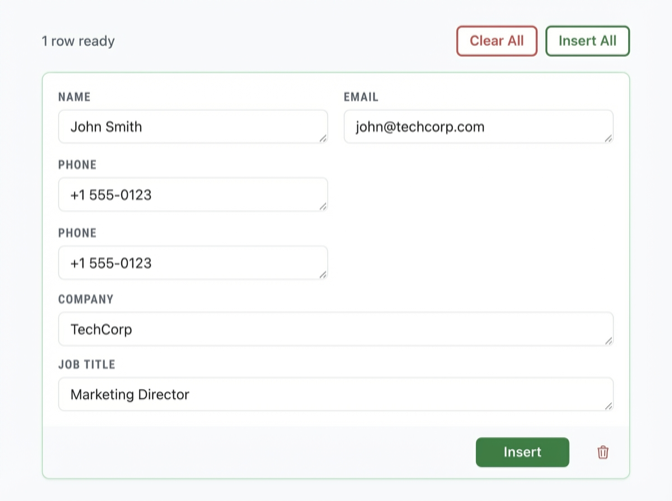
Before anything touches your spreadsheet, you see a preview of the extracted data. Check that:
- Name parsed correctly (first/last not swapped)
- Email is complete (no typos from OCR)
- Phone number formatted properly
- Company name accurate
Edit any fields inline if the card was hard to read. Then click Insert—your contact appears in Google Sheets or Excel quickly.
Batch Processing: A Stack of Cards in Minutes
The real power is batch processing. Don't scan business cards one at a time—save them up:
- Collect cards throughout an event
- Back at your desk: photograph the whole stack
- Upload all images to Spreadsheet Agent
- AI extracts each card into a separate row
- Quick review pass—fix any OCR errors
- Insert all to your spreadsheet
A full stack of business cards in one focused review session instead of hours of manual data entry.
Why Scan Business Cards to a Spreadsheet?
Most business card scanner apps export to vCard or their own proprietary format. Then you're stuck:
- Importing into a contacts app you don't use
- Exporting to CSV and reformatting columns
- Copy-pasting between apps
- Losing data in translation
Scanning directly to Excel or Google Sheets means your contact data lives where you actually work with it. Sort by company. Filter by event. Add follow-up notes. Merge with your CRM export. Your data, your format, your workflow.
Tips for Better Business Card Scanning
Photo quality matters:
- Good lighting, no shadows across the text
- Card fills most of the frame
- Flat surface, no curling or bending
Handle double-sided cards:
- Photograph both sides
- Add instruction: "Card may have two images—combine info from both"
Non-English cards:
- AI handles multiple languages
- Add instruction: "Keep names in original script, transliterate if helpful"
Frequently Asked Questions
Can you scan business cards directly to Excel?
Not with Excel's built-in features. Excel doesn't have OCR or business card scanning. You need a tool that extracts contact data from images and exports to Excel format. Spreadsheet Agent does this—upload a business card photo, AI extracts the fields, and you push directly to your connected spreadsheet.
How do I convert business cards to a spreadsheet?
Photograph your business cards, then upload to a tool with AI extraction. Spreadsheet Agent reads the card, identifies name, email, phone, company, and title, then maps each field to your spreadsheet columns. Review the extraction, click insert, and the contact appears in your Google Sheet or Excel file.
What's the best business card scanner app for Excel?
Most scanner apps export to vCard or CSV, not directly to Excel. For direct Excel/Google Sheets integration, Spreadsheet Agent lets you upload card photos and push extracted contacts straight to your spreadsheet with custom column mapping.
Can AI read business cards accurately?
Modern AI handles most business cards well, including creative layouts, multiple languages, and unusual fonts. Accuracy depends on photo quality—good lighting and a clear image give the best results. Always review extractions before inserting, especially for handwritten cards or low-quality prints.
How do I organize business cards digitally?
The simplest approach: scan to a spreadsheet. You get sortable columns (company, event, date added), filterable data, and easy export to any format. Add a "Source" column to track where you met each contact—"CES 2026", "LinkedIn", "Client referral"—for better follow-up.
Stop Typing Contact Info Manually
Every business card you type manually is time wasted. Set up a contact extraction agent once, configure your columns, then just photograph and review. Works for conferences, trade shows, networking events, or that drawer full of cards you've been meaning to digitize.
When you are ready, open Spreadsheet Agent and run your first card batch.