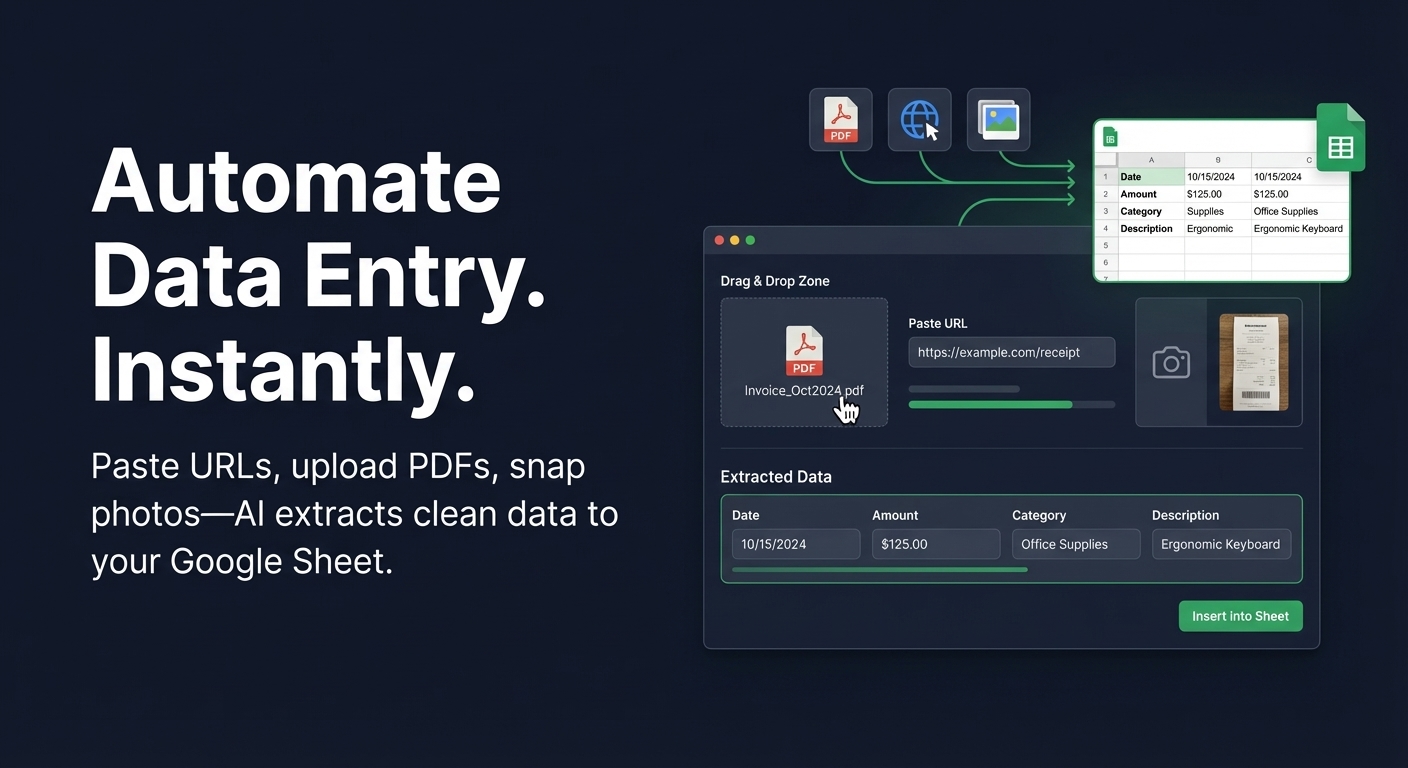
Copying data from PDFs, websites, and images into Google Sheets is tedious. You paste, reformat, fix errors, repeat. Hours disappear into work that feels like it should take minutes. What if you could paste a URL, upload a file, or snap a photo—and have AI automatically fill your spreadsheet with clean, structured rows?
That's exactly what a Google Sheets AI data entry tool does. Instead of manually extracting and formatting information, you let AI do the heavy lifting while you review and approve the results.
This guide covers the easiest ways to automate data entry in Google Sheets—and how tools like Spreadsheet Agent eliminate the manual work entirely.
Why Automate Data Entry in Google Sheets?
Manual data entry costs more than you think. Repetitive spreadsheet work can consume a meaningful share of the week—time that could go toward analysis, strategy, or revenue-generating work.
Automatic data entry solves this by:
- Saving time: Import dozens of records quickly instead of hours
- Reducing errors: AI extracts data consistently without typos or missed fields
- Maintaining consistency: Every row follows the same format automatically
- Scaling effortlessly: Process 10 entries or 1,000 with the same effort
Common Approaches to Google Sheets Automation (And Their Limits)
Before we get to the easiest solution, let's look at what most people try first:
Google Forms
Google Forms sends responses directly to Sheets—but only for new form submissions. If you need to import existing PDFs, websites, or images, you'll usually need additional tools.
Google Apps Script
Powerful but requires JavaScript knowledge. You'll spend hours writing and debugging code for something that should be simple.
Zapier / Make.com
Great for connecting apps, but they add monthly costs ($20-50+), require workflow configuration, and don't handle unstructured data like PDFs or screenshots well.
IMPORTXML / IMPORTHTML Functions
Built-in Google Sheets functions for pulling web data—but they break constantly, require XPath knowledge, and fail on dynamic websites.
The Easiest Solution: AI-Powered Data Entry for Google Sheets
What if you could skip the complexity? A modern AI data entry tool lets you:
- Paste a URL, upload a file, or drop in text/images
- AI extracts the relevant data automatically
- Review the extracted data in a simple form
- Push clean rows directly to your Google Sheet
No coding. No complex workflows. No broken formulas.
How Spreadsheet Agent Works
Spreadsheet Agent is an AI-powered data entry tool built specifically for Google Sheets. Here's the actual workflow:
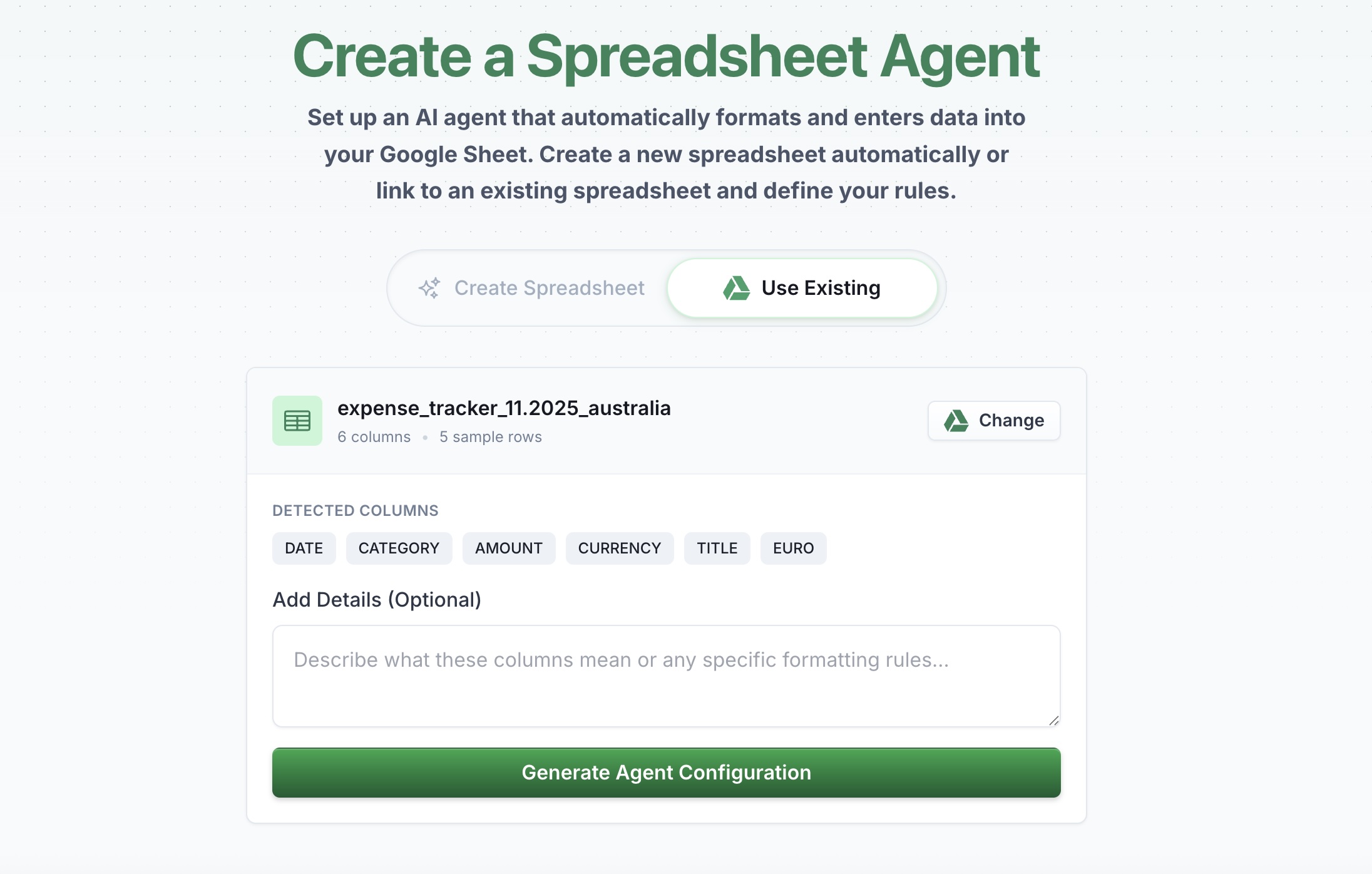
Step 1: Connect Your Google Sheet
Link an existing spreadsheet or describe what data you need—the AI can generate the column structure for you.
Step 2: Provide Your Data Source
This is where Spreadsheet Agent shines. You can input data from:
- URLs: Paste any webpage and AI extracts relevant information
- PDFs: Upload invoices, receipts, contracts, or statements
- Images: Snap photos of documents, receipts, or even whiteboards
- Text: Paste raw text, emails, or clipboard content
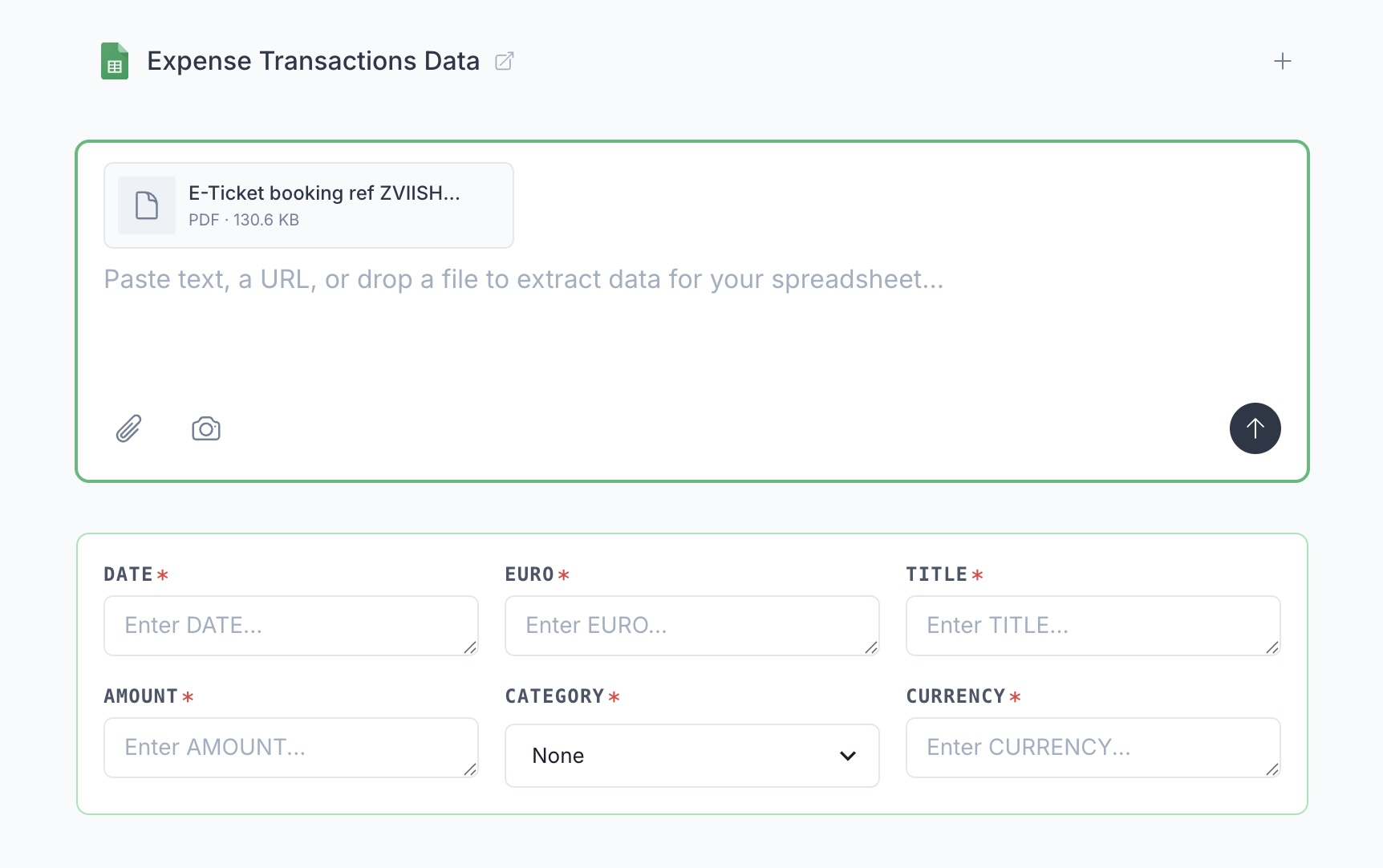
Step 3: Review Before Inserting
AI presents extracted data in an editable form. You verify accuracy, make adjustments if needed, and keep review control over what enters your spreadsheet.
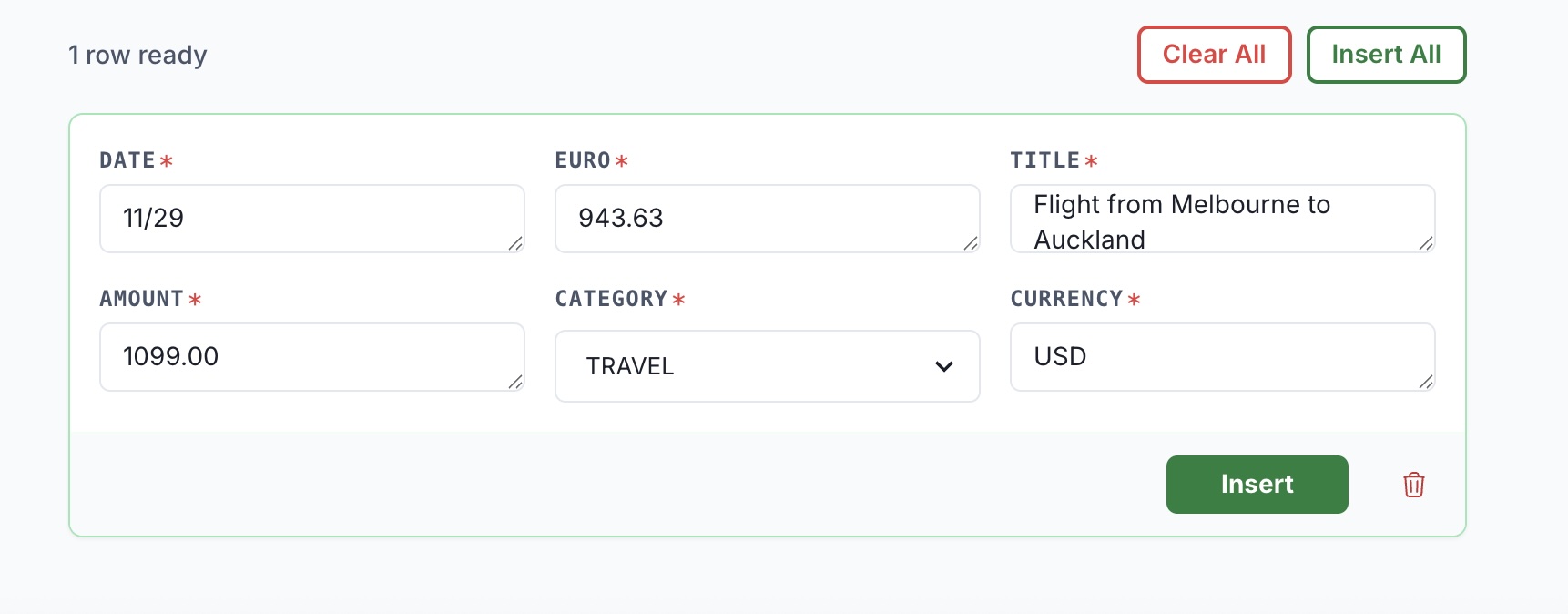
Step 4: Push to Google Sheets
One click inserts clean, properly formatted rows into your Sheet. Done.
Real Use Cases for Automated Data Entry
Here's how different professionals use Google Sheets AI to eliminate manual data entry:
Extract Data from Websites to Spreadsheets
Need to pull product listings, job postings, or competitor pricing into a spreadsheet? Instead of copying and pasting one item at a time, paste the URL and let AI extract the data.
Example: Real estate investors scrape property listings—address, price, square footage, bedrooms—directly into their tracking sheets.
Read our full guide: How to Scrape a Website Into Google Sheets (No Code Required) →
Convert PDFs to Google Sheets
Invoices, bank statements, receipts, and contracts contain structured data trapped in PDF format. AI extracts vendor names, amounts, dates, and line items directly into spreadsheet rows.
Example: Accountants process dozens of invoices weekly by uploading PDFs and having AI populate their expense tracking sheet.
Read our full guide: Convert PDFs to Spreadsheet Rows with AI →
Convert Images to Spreadsheet Rows
Photos of receipts, business cards, product labels, or handwritten notes can be transformed into structured data. Snap a picture, upload it, and AI reads the content.
Example: Field teams photograph receipts on the go—expense data flows into Google Sheets without manual typing.
Bulk Product Listing Creation
E-commerce sellers and marketplace vendors need to create dozens or hundreds of listings. AI generates titles, descriptions, and pricing from product photos.
Example: Facebook Marketplace sellers can batch listing prep significantly faster than manual entry.
Read our full guide: Bulk Facebook Marketplace listing workflow →
Research Data Compilation
Analysts and researchers pull information from multiple web sources into a single spreadsheet. AI extracts and normalizes data from different page formats.
Example: Market researchers compile competitor pricing from 20 different websites into one comparison sheet.
Contact and Lead Import
Business cards, email signatures, and LinkedIn profiles contain contact details. Instead of typing each one, paste or photograph the source and let AI extract name, email, phone, and company.
Event and Conference Notes
Session schedules, speaker bios, and agenda items from conference websites can be extracted into planning spreadsheets automatically.
Why This Approach Beats Alternatives
| Feature | Manual Entry | Apps Script | Zapier | Spreadsheet Agent |
|---|---|---|---|---|
| Setup time | None | Hours | 30-60 min | 5 minutes |
| Coding required | No | Yes (JavaScript) | No | No |
| Handles PDFs | N/A | Complex | Limited | Yes |
| Handles images | N/A | Very complex | No | Yes |
| Handles websites | N/A | Complex | Limited | Yes |
| Review before insert | Yes | No | No | Yes |
| Monthly cost | Your time | Free | $20-50+ | $5 |
Data Sources That Work with AI Data Entry
A good no-code web scraper and data extraction tool should handle multiple input types:
Web Pages
- Product listings (Amazon, eBay, real estate sites)
- Job postings
- Company directories
- News articles
- Social media profiles
Documents
- Invoices and receipts
- Bank and credit card statements
- Contracts and agreements
- Reports and whitepapers
- Shipping labels and tracking info
Images
- Photos of receipts and business cards
- Screenshots of data
- Whiteboard notes
- Product photos (for listing creation)
- Scanned documents
Common Questions About Google Sheets Data Entry Automation
Is AI data extraction accurate?
Accuracy can be high on clean, well-formatted documents. The key advantage of Spreadsheet Agent is the review step—you verify extractions before they hit your sheet and catch errors early.
Is my data secure?
Spreadsheet Agent can route outputs to your Google Drive workflow. For security and retention details, review the current product policy for your workspace setup.
Can I extract data from any website?
AI works on most public web pages. Dynamic content, login-protected pages, and heavily JavaScript-dependent sites may have limitations, but standard listings, articles, and product pages work well.
How is this different from IMPORTXML?
IMPORTXML requires XPath selectors, breaks when sites change, and can't handle PDFs or images. AI-powered extraction understands content semantically—it finds the data you need regardless of page structure.
What if I need custom extraction rules?
You can provide instructions that tell the AI how to interpret specific data. For enterprise users, custom agents with specialized extraction logic are available.
Getting Started with Automated Data Entry
Ready to stop copying and pasting? Here's your action plan:
- Identify your most tedious data entry task: What takes the most time this week?
- Gather sample data: Collect 3-5 examples (URLs, PDFs, or images)
- Connect your Google Sheet: Either link an existing sheet or create a new one
- Test the extraction: Run your samples through and review the results
- Scale up: Once it works, process your full backlog
Most teams see meaningful time savings once they standardize one workflow and run it repeatedly.
Stop Typing. Start Automating.
Manual data entry is increasingly automatable. Google Sheets AI tools like Spreadsheet Agent can streamline how you get data into spreadsheets—paste a URL, upload a PDF, or snap a photo, then review the extraction.
Your time is better spent on work that actually requires human judgment. Let AI handle the data entry.