Beyond Native AI: Building Smart Spreadsheet Agents
Google's built-in Gemini features can help with formulas and basic analysis, but they are not primarily designed to reliably populate sheets with structured data from receipts, invoices, and other external documents without additional tooling.
That's where AI agents come in. Instead of manually typing data into cells, you configure an agent once—define your columns, set formatting rules, and write extraction instructions. Then it handles the rest.
This guide covers everything you need to set up AI-powered spreadsheet automation: from creating your first agent to advanced column configuration techniques.
What You'll Learn
- Two ways to create agents: from scratch or from an existing spreadsheet
- Column configuration: field names, descriptions, and allowed values
- Formatting rules: how to control date formats, number precision, and categorization
- Agent instructions: global guidance for how the AI processes your data
- Asset folders: automatic file organization per row with Google Drive
Creating an Agent: Two Approaches
There are two ways to set up a spreadsheet agent, depending on your starting point:
Option 1: Create From Scratch (Natural Language)
Best when you're starting fresh and know what data you want to track.
Simply describe what you want in plain English:
"I need a spreadsheet to track business expenses with date, vendor name, amount, category (travel, meals, supplies, software, other), payment method, and receipt number"
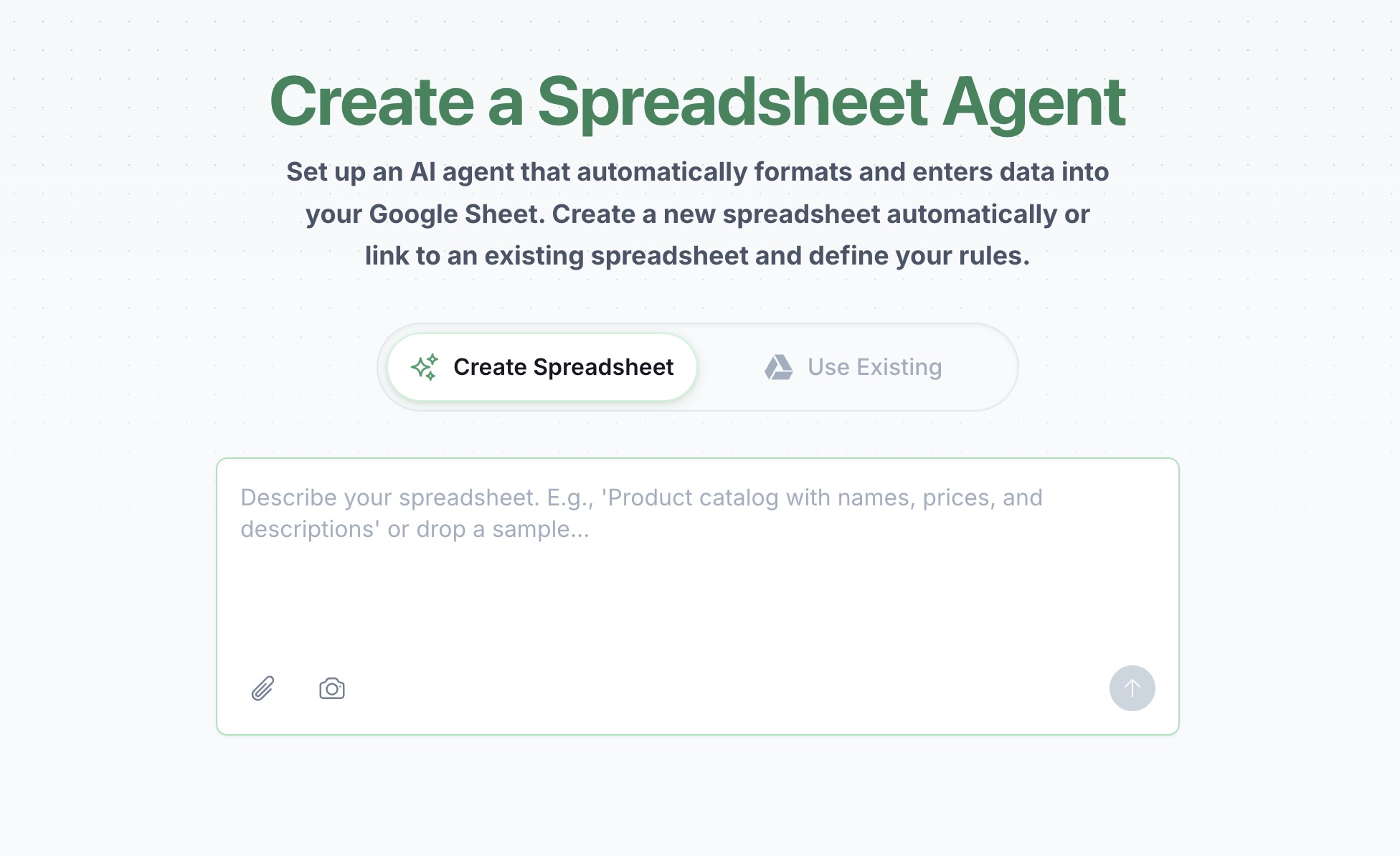
The AI generates a complete column structure based on your description. You can then refine each column's settings before creating the agent.
Option 2: Create From Existing Spreadsheet
Best when you already have a Google Sheet with headers defined.
Connect your Google account, select the spreadsheet, and the agent automatically detects your column structure. It uses your existing headers and any sample data to infer appropriate formatting rules.
This approach is ideal for:
- Adding automation to spreadsheets you're already using manually
- Migrating existing workflows to AI-assisted data entry
- Team spreadsheets where the structure is already established
Column Configuration: The Heart of Your Agent
Each column in your agent has key settings that determine how data gets extracted and formatted:
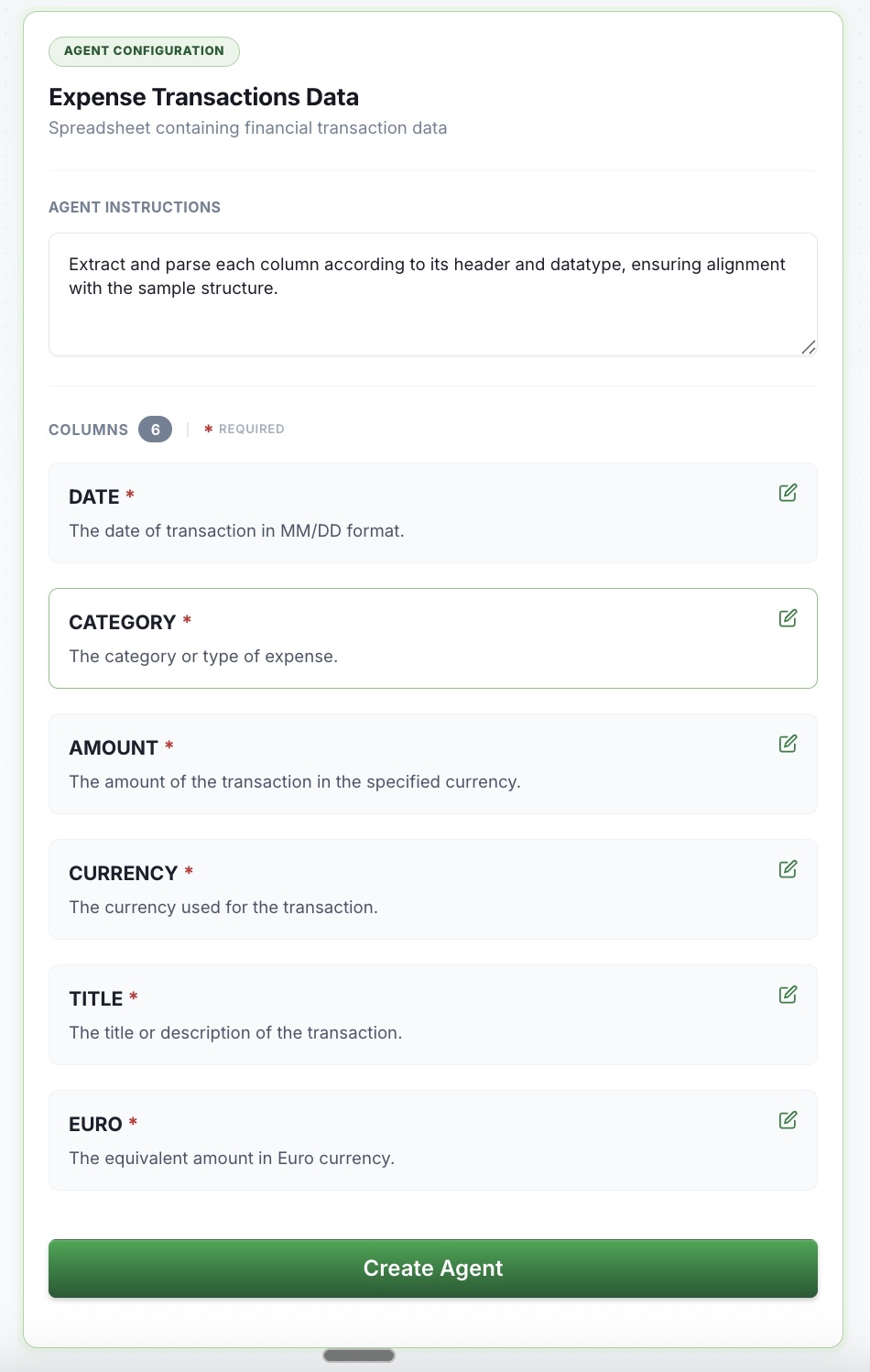
1. Field Name
The column header that appears in your spreadsheet. Keep it concise and descriptive:
- ✅
date,amount,vendor_name,category - ❌
the_date_of_transaction,$$$,col1
Use underscores for multi-word names. The AI uses these names as context when extracting data.
2. Description (Column Instructions)
This is where the magic happens. The description tells the AI exactly what to extract and how to format it.
Vague descriptions lead to inconsistent data. Include the exact format you want.
Weak description:
"The date"
Strong description:
"The transaction date in YYYY-MM-DD format. If only month and year are shown, use the first of the month."
Description Examples by Use Case
For amounts/currency:
"Total amount as a number without currency symbols. Round to 2 decimal places. If tax is shown separately, include total with tax."
For categorization:
"Pick the best category for this expense. Use 'Other' if the expense doesn't clearly fit the available options."
For names/text:
"The vendor or merchant name. Use the business name, not the parent company. Standardize common names (e.g., 'AMZN' → 'Amazon')."
For optional fields:
"Invoice number if present. Leave blank if not found—do not guess or make up values."
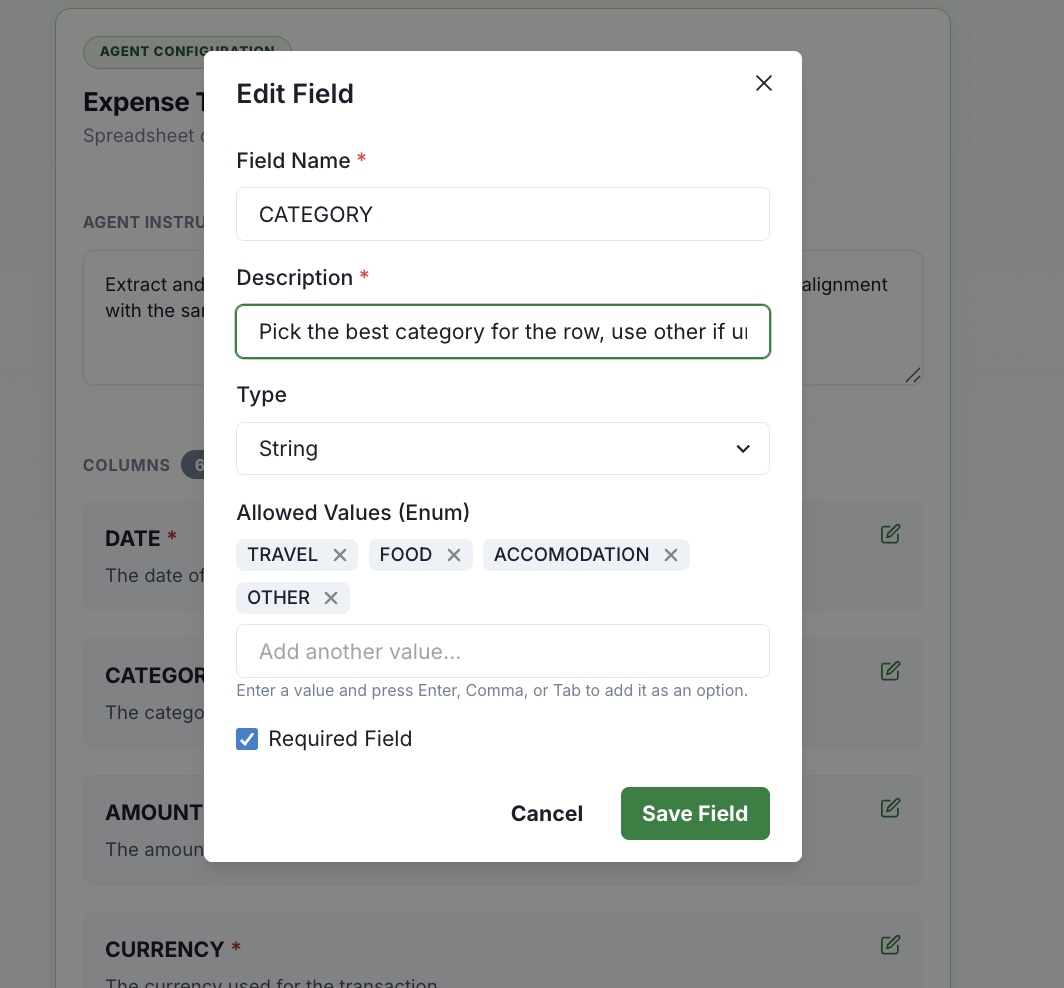
3. Allowed Values (Enum)
For columns that should only contain specific values, define an enumeration:
Example for expense categories:
- 🏷️ Travel
- 🏷️ Meals
- 🏷️ Software
- 🏷️ Office Supplies
- 🏷️ Equipment
- 🏷️ Other
When you define allowed values, the AI will only output values from your list. This ensures consistent categorization across all entries.
Add an "Other" or "Uncategorized" option to your enums. This gives the AI a valid choice when data doesn't fit your predefined categories, preventing extraction errors.
4. Required vs Optional
Mark fields as required when they're essential for the row to be useful. Required fields help communicate which data is most important for your workflow.
Common patterns:
- Always required: Date, amount, primary identifier
- Usually optional: Notes, reference numbers, secondary details
Agent Instructions: Global Extraction Guidance
Beyond individual column descriptions, you can provide global instructions that apply to all extractions. These help the AI understand context and handle edge cases.
What to Include in Agent Instructions
Data source context:
"This agent processes business expense receipts, mostly from US vendors. Most transactions are in USD unless otherwise noted."
Handling ambiguity:
"When multiple items appear on a single receipt, create one row per line item, not one row per receipt."
Regional/format preferences:
"Use European date format (DD/MM/YYYY) for all dates. Currency amounts should use period as decimal separator."
Business rules:
"Categorize Uber rides as 'Travel' for trips to/from airports, otherwise 'Local Transportation'."
Instructions vs Column Descriptions
| Use Agent Instructions For | Use Column Descriptions For |
|---|---|
| Rules that apply across all columns | Specific formatting for that field |
| Context about your data sources | What data to extract |
| How to handle edge cases | Default values if missing |
| Row-level decisions (split vs combine) | Enum fallback behavior |
Formatting Rules: Real-World Examples
Here are complete column configurations for common use cases:
Expense Tracking Agent
| Field | Description | Enum Values |
|---|---|---|
date |
Transaction date in YYYY-MM-DD format | — |
vendor |
Business name from receipt. Normalize abbreviations. | — |
amount |
Total amount including tax, 2 decimal places | — |
category |
Best matching expense category | Travel, Meals, Software, Supplies, Other |
payment_method |
How the expense was paid | Credit Card, Debit, Cash, Invoice |
Invoice Processing Agent
| Field | Description | Enum Values |
|---|---|---|
invoice_number |
Unique invoice ID exactly as shown | — |
issue_date |
Invoice date in MM/DD/YYYY format | — |
due_date |
Payment due date. Calculate from terms if not explicit. | — |
client_name |
Bill-to company or person name | — |
total |
Total amount due including tax | — |
status |
Current invoice status | Draft, Sent, Paid, Overdue |
Asset Folders: Automatic File Organization Per Row
Need to store files alongside your spreadsheet data? Just mention it in your agent description:
"Track expenses with date, vendor, amount, category — and I need a folder to store receipt images"
Spreadsheet Agent automatically adds an ASSET_FOLDER_URL column. When you upload files while adding a row, they're organized in Google Drive with a clickable link in your sheet.
This is perfect for:
- Receipt storage — Keep source images linked to each expense row
- Document tracking — Attach contracts, invoices, or photos to each entry
- Property listings — Store multiple photos per property row
- Project management — Link deliverables to each task
📖 Full guide: How to Upload Files and Images to Google Sheets with Folders
Common Setup Mistakes (And How to Avoid Them)
❌ Vague Column Descriptions
Problem: "The amount" → AI doesn't know whether to include tax, what currency, how many decimal places.
Fix: "Total amount in USD including tax, formatted as number with 2 decimal places."
❌ No Catch-All for Enums
Problem: Categories are "Travel, Meals, Software" but you get an office supplies receipt.
Fix: Always add "Other" or "Miscellaneous" to your allowed values.
❌ Inconsistent Date Formats
Problem: Some rows show "01/15/2026", others show "2026-01-15", others show "Jan 15".
Fix: Specify exact format in description: "Date in YYYY-MM-DD format (e.g., 2026-01-15)."
❌ Overloading Agent Instructions
Problem: Giant wall of text in global instructions that repeats what's in column descriptions.
Fix: Keep global instructions for truly global rules. Column-specific guidance goes in column descriptions.
Testing Your Agent Configuration
Before processing hundreds of documents, test with a few representative samples:
- Test typical inputs — A normal receipt/document your agent will commonly see
- Test edge cases — Blurry images, unusual formats, missing information
- Test your enums — Make sure categories make sense for real data
- Check formatting — Verify dates, numbers, and text appear as expected
Refine your column descriptions based on what you see. A few minutes of testing saves hours of cleanup later.
Frequently Asked Questions
Can I change column configuration after creating an agent?
Currently, column configuration is locked after agent creation. If you need different columns, create a new agent with the updated structure. This ensures data consistency across all rows in your spreadsheet.
What file types can the AI process?
Images (JPG, PNG, GIF, WEBP) and PDFs. For best results with receipts and invoices, clear photos or native PDFs work better than scanned images. HEIC files should be converted to JPG first.
How do I handle multiple currencies?
Add a "currency" column with an enum of expected currencies (USD, EUR, GBP, etc.). In your amount column description, specify "numeric value only, no currency symbols."
Can different columns have different date formats?
Yes. Each column description is independent. You might want invoice_date in MM/DD/YYYY but due_date calculated as YYYY-MM-DD for sorting.
What if the AI can't find data for a field?
If the AI can't find data for a field, it will leave that cell blank. You can review the extracted data before inserting to your sheet and manually fill in any missing values.
Start Automating Your Spreadsheets
The time you spend configuring your agent upfront pays dividends with every document processed. Clear column descriptions and thoughtful formatting rules mean less manual cleanup and more reliable data.
Start simple, test thoroughly, and refine as you learn what works for your specific documents. Most users find their sweet spot within 2-3 iterations.
If you want a concrete setup to copy, start with Spreadsheet Agent, then test with a small batch of real files before scaling up.