
Claude works with Google Sheets in more ways than most people realize — but the options split into two very different jobs, and it's worth knowing which is which before you pick one.
Claude is excellent at working with data that's already in your sheet: writing formulas, cleaning columns, explaining numbers, and analyzing tables. The newer agentic setups (Cowork, Claude Code with the gws CLI, or an MCP server) can even write to a sheet and create rows — and because Claude is multimodal, those routes can read a PDF or photo and populate cells from it.
The catch is setup. Native connectors are read-only for Sheets, and every route that can actually write requires a Google Cloud project, OAuth credentials, and a CLI or MCP server to wire up. If your goal is just to turn documents and images into clean rows without any of that, that's a different tool — covered at the end.
Quick disclosure — who's writing this: we make Spreadsheet Agent, an AI tool that pulls data from PDFs, photos, and web pages straight into Google Sheets — no Claude account, nothing to set up. If that's all you actually need, give us a shot. If you specifically want Claude itself working in your sheets, read on — what follows is an honest rundown of every way to do it.
The Real Ways to Use Claude with Google Sheets
First, "Claude" isn't one thing. In the app you'll see three modes — Chat, Cowork, and Code — alongside the web app at claude.ai. What you can do with a spreadsheet depends on which one you're in and how it's connected. Here's the honest map.
1. Claude Chat — read and analyze your sheets (no writing)
Chat (on claude.ai or the desktop app) is for asking questions — research, summaries, "what's the trend in this tab." Connect Google Drive in your settings and Claude can read your spreadsheets. The part people get wrong: per Anthropic's own documentation, the connector can read Sheets, Docs, PDFs and images but cannot edit cells or update a spreadsheet — Sheets are read-only here. (For contrast, the same connector gets full read/write on Google Calendar, and Gmail is drafts-only.) Perfect for analysis; no good for writing data back. Verified against Anthropic's Help Center, June 2026.
2. Claude Cowork — a sandboxed agent for knowledge workers (read & write)
Cowork is the "doing" mode: you hand it a task and it executes, with file access, document creation, and connected services. It runs inside a sandboxed VM so it can't damage your machine — essentially the safe, non-developer counterpart to Claude Code (mode overview, Cowork-vs-Code security). Pointed at Sheets through a connector (read) or a Google Sheets MCP server (read/write, e.g. Composio's Sheets toolkit), Cowork can create and populate spreadsheets — though write access can still be inconsistent. It's the best fit if you want hands-off help without living in a terminal. This step-by-step video on connecting Claude to Google Sheets walks through the flow.
3. Claude Code — a full-access agent for developers (read & write)
Code is terminal-based with full access to your local machine — the most powerful option, but it expects developer comfort. Paired with the Google Workspace gws CLI (open-source under Google's googleworkspace org, with a dedicated Sheets skill) or a Sheets MCP server, it gets full read/write through plain commands like gws sheets append / update / read — and because Claude is multimodal, it can read a PDF or photo and write the extracted rows straight in. For setup, see VentureBeat's coverage and the hands-on guides from Grizzly Peak Software and MindStudio. One-time setup (a Google Cloud project + OAuth), then it's just shell commands.
| Claude mode | Write to Sheets? | Files/images → rows? | Best for |
|---|---|---|---|
| Chat (claude.ai / desktop) | No — read-only | No | Analysis and questions |
| Cowork (sandboxed) | Yes — via an MCP server | Yes | Knowledge workers, hands-off |
| Code (full local access) | Yes — via gws CLI or MCP | Yes | Developers |
Getting Documents Into Rows — Without a Claude Account or Any Setup
Every option above assumes you have a Claude or Anthropic account and you're willing to wire up access. If the job you actually have is "turn these invoices, receipts, business cards, or web pages into spreadsheet rows," there's a more direct path. Spreadsheet Agent does that as a hosted tool.
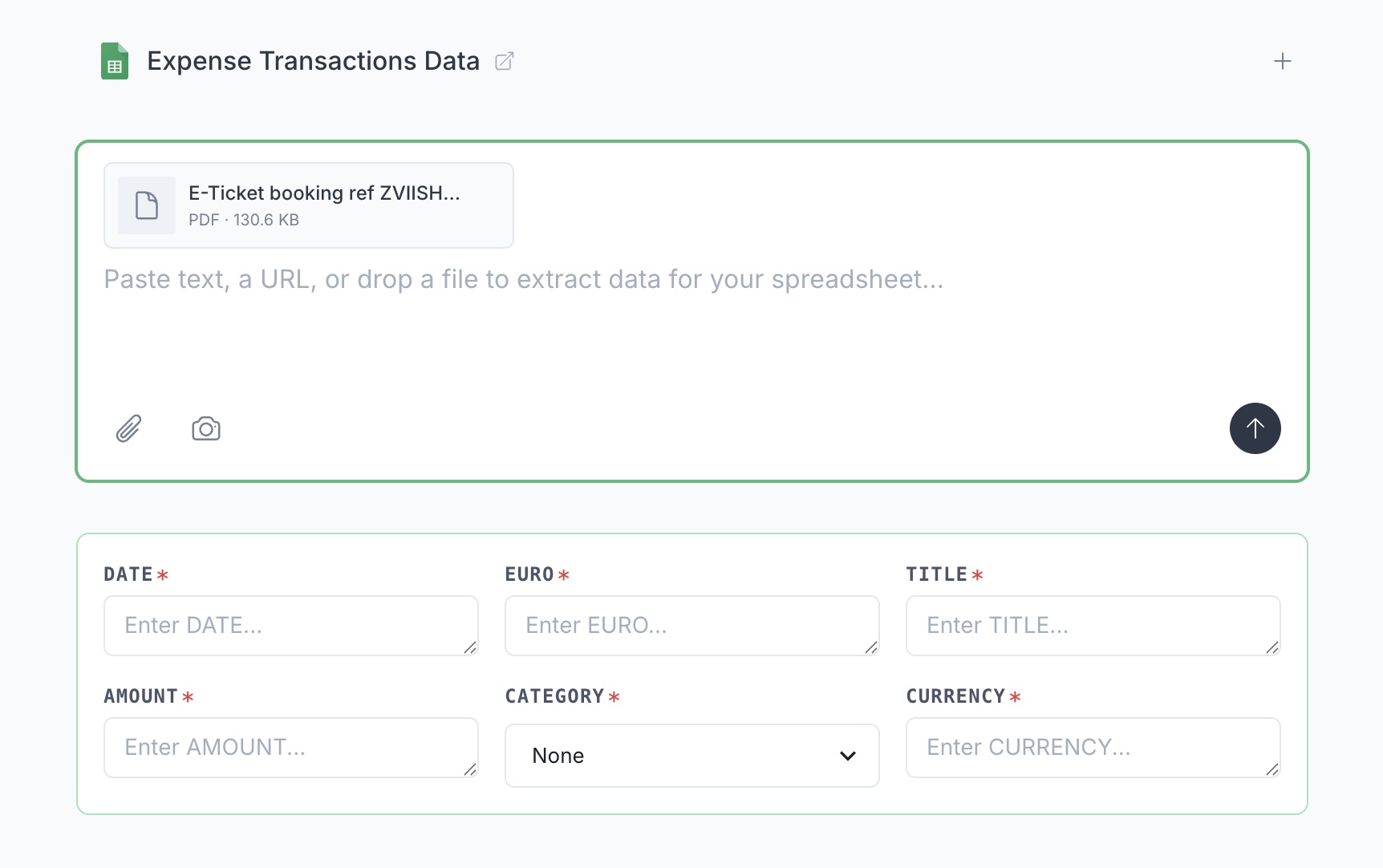
Here's what that looks like — paste text, drop in a URL, or upload a PDF or photo, and it extracts straight into the columns you defined:
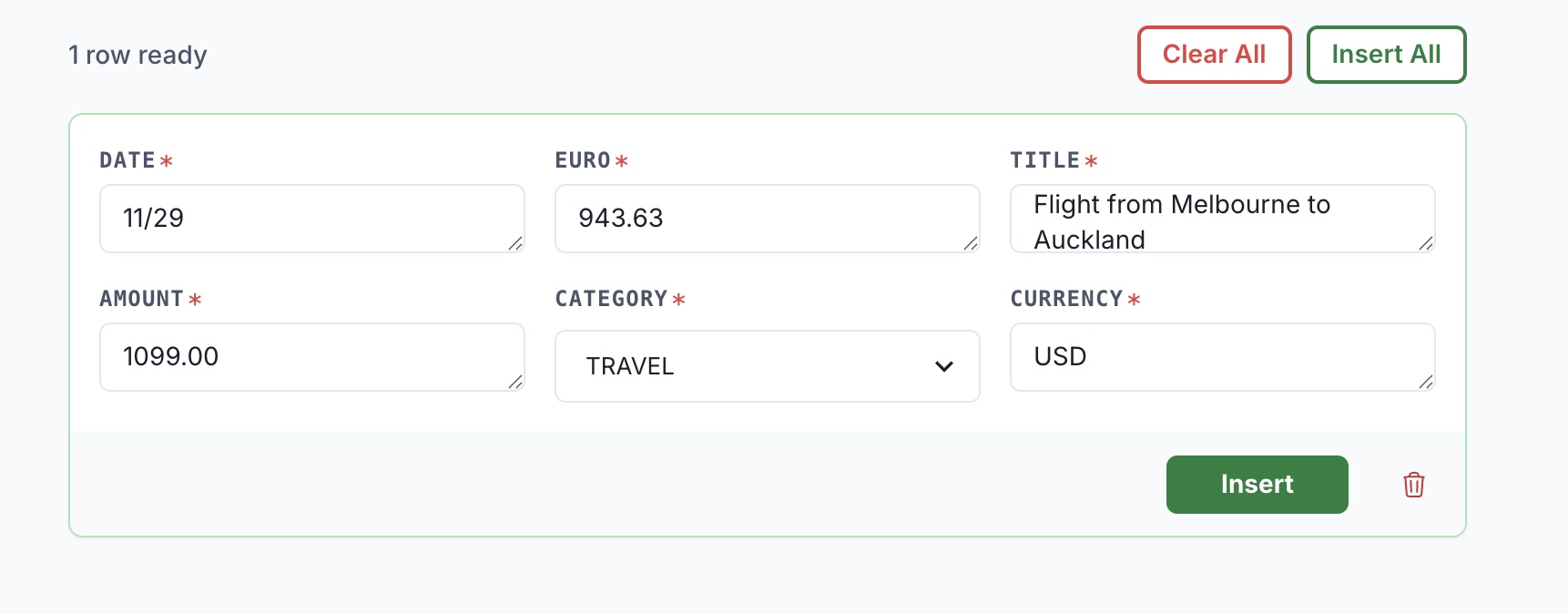
Then you review the extracted row and insert it into Google Sheets when it looks right — nothing lands in your sheet until you say so:
What you get:
- No Claude account or API key. You don't need an Anthropic subscription or any model credentials.
- Nothing to set up. No Google Cloud project, no OAuth client, no CLI, no MCP server.
- Repeatable workflows as agents. Define your columns and extraction instructions once as an agent, then reuse it on every new batch instead of re-prompting from scratch. (New to it? See the agent setup guide.)
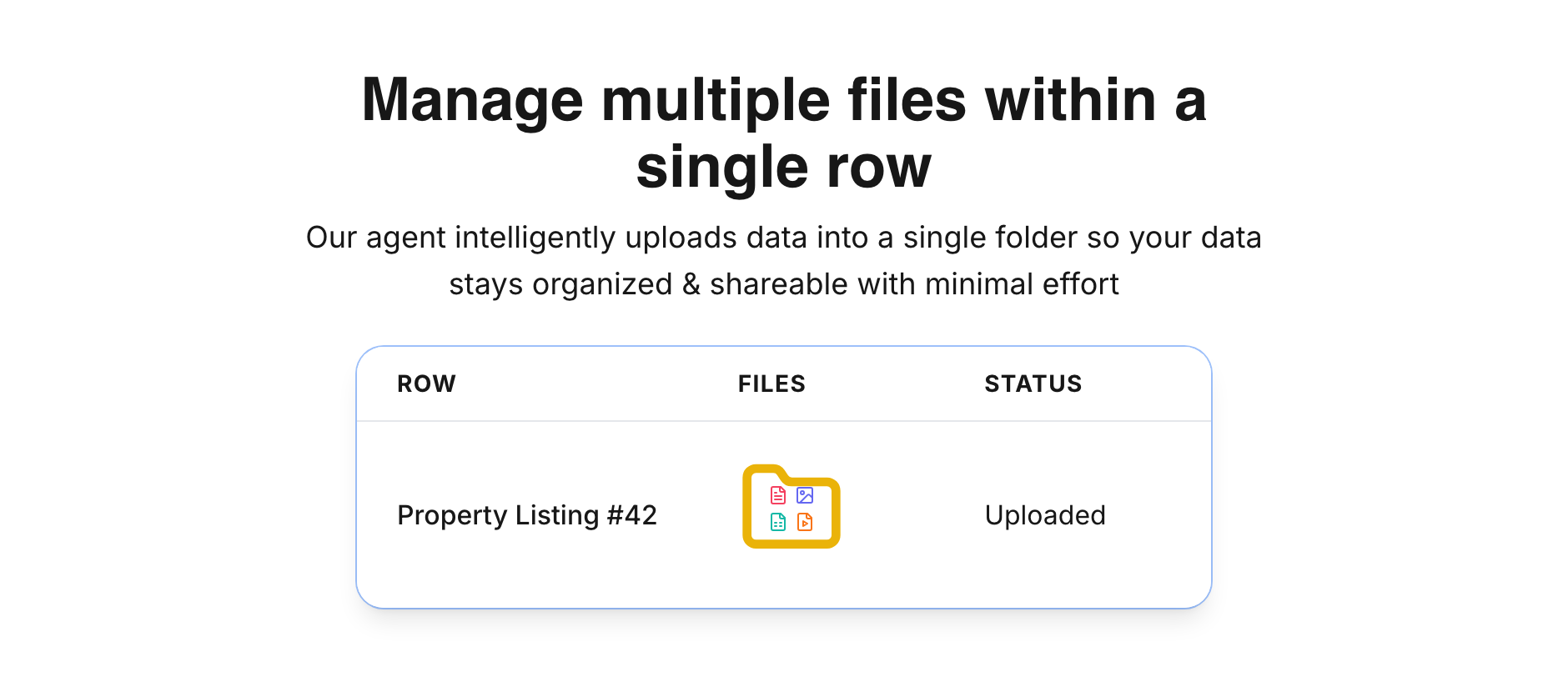
- Optional per-row file folders. Want to keep files with each row? Ask for a folder and Spreadsheet Agent adds an asset-folder column that stores your uploads in an auto-organized Google Drive folder per row, linked from the sheet.
- Review before insert. The extracted data lands in a preview first; you check it and fix anything off before it goes into your sheet.
And the per-row folder option in action — each row keeps its own Google Drive folder of files, linked right from the sheet:
Concretely, that means workflows like PDF invoices to a sheet, a photo to a spreadsheet, or a web page to rows — all without standing up infrastructure.
To be clear about scope: Spreadsheet Agent handles data entry and extraction, not formulas or analysis. For writing formulas, cleaning existing columns, or interrogating a finished sheet, Claude is the better tool — see our guide to AI features in Google Sheets for that side of the work.
Which to Use When
| Task | Claude | Spreadsheet Agent |
|---|---|---|
| Write or debug formulas | ✅ | — |
| Analyze / summarize a finished sheet | ✅ | — |
| Clean and reformat existing columns | ✅ | — |
| Extract a PDF or image into rows (no setup) | Needs Cowork/CLI + setup | ✅ |
| Pull a web page into structured rows | Needs setup | ✅ |
| Reusable extraction workflow for non-technical users | — | ✅ |
Bottom line: use Claude for working with data that's already in the sheet; use Spreadsheet Agent for getting data into it without the setup overhead.
Frequently Asked Questions
Can you add Claude to Google Sheets?
Yes — but what you can do depends on the mode. In Claude Chat, connect Google Drive to read your Sheets for analysis. To actually write to a sheet, use Claude Cowork or Claude Code with a Google Sheets MCP server or the gws CLI.
Which Claude mode should I use for Google Sheets?
Chat to read and analyze a sheet. Cowork if you want a sandboxed agent to build or update one without coding. Code if you're technical and want full control through the gws CLI or an MCP server.
Do I need a Claude account to use Spreadsheet Agent?
No. Spreadsheet Agent doesn't require an Anthropic account or API key — you don't manage any model credentials or set up connectors. Plans start at $5/month.
Can Claude pull a PDF into Google Sheets?
Through an agentic route — Cowork, or Claude Code with the gws CLI or an MCP server — yes, since Claude can read documents and write to a sheet. If you'd rather skip that setup, a hosted extraction tool turns PDFs and images into rows directly.
When you want documents and images turned into spreadsheet rows without a Claude account or any setup, open Spreadsheet Agent. Plans start at $5/month.
Either way — whether you use Claude Chat, Cowork, or Code, or us — we hope you found this rundown helpful.