A Realistic Look at Gemini AI in Google Sheets
Google has been slow to bring genuinely useful AI features to Sheets. While competitors have shipped robust AI integrations, Gemini in Google Sheets remains a mixed bag—some features are legitimately helpful, others are frustratingly buggy.
In this guide, we'll give you an honest assessment of what Gemini can actually do well, where it falls short, and how to protect your data when experimenting with these features.
Undo UX for Gemini actions can be poor or inconsistent depending on what was inserted or changed. In some flows, users effectively experience a "no undo function" outcome because a normal undo pass does not fully restore the prior state and manual cleanup is still needed. Before using any Gemini feature, go to File → Version history → Name current version so you have a reliable rollback point.
What is Gemini in Google Sheets?
Gemini is Google's AI assistant built into Google Workspace. In theory, it helps with formulas, data analysis, and organization. In practice, results vary significantly.
What Gemini Does Well ✅
- Formula explanations — Breaks down complex formulas so you understand them
- Simple formula generation — Basic SUMIFs, VLOOKUPs, and common patterns
- Creating template tables — Generating structured data like country lists, timelines
- Text transformations — Extracting first names, formatting phone numbers
- IMPORTXML and web formulas — Surprisingly good at generating scraping formulas
"I got it working and it was Google Gemini that made it work... make sure you do this on the web and NOT in the mobile app."
— r/googlesheets user on getting IMPORTXML formulas for gold/silver prices
Where Gemini Struggles ❌
- Complex multi-step formulas — Often gets logic wrong or creates errors
- Working with your actual data — Frequently misunderstands context and structure
- Formatting operations — Can destructively reformat entire sheets without warning
- Consistency — Same prompt can give wildly different results
- Large datasets — Struggles with sheets over a few hundred rows
- Dynamic charts — Generated charts often don't update with new data
"Gemini gave up. It literally told me I had exhausted all possible solutions."
— r/googlesheets user on trying to get chart colors to stick with sorted data
You can access Gemini through the side panel in Google Sheets or by typing prompts directly into cells.
How to Access Gemini in Google Sheets
Method 1: The Gemini Side Panel
Click the Gemini icon (sparkle) in the top-right corner of Google Sheets. This opens a chat panel where you can:
- Ask questions about your data
- Request formula help
- Generate tables and content
- Get analysis and insights
Method 2: Help Me Organize (In-Cell)
Type @ in any cell and select "Help me organize" to access Gemini directly. This is perfect for quick tasks like creating lists or generating content.

Requirements
Gemini in Google Sheets requires:
- Google Workspace account (Business, Enterprise, or Education Plus)
- Or Google One AI Premium subscription for personal accounts
- Gemini features enabled by your workspace admin
How to Enable Gemini in Google Sheets
Before you can use Gemini, it needs to be enabled for your account:
For Personal Accounts
- Subscribe to Google One AI Premium ($19.99/month)
- Open Google Sheets in your browser
- Look for the Gemini sparkle icon in the top-right corner
For Workspace Accounts
- Your admin must enable Gemini in the Google Admin Console
- Go to Apps → Google Workspace → Gemini
- Turn on access for your organizational unit
- Users may need to sign out and back in
Don't see Gemini? Check with your Workspace admin—it's not enabled by default for most organizations.
Gemini Features in Google Sheets
1. Formula Generation
Stop memorizing complex formulas. Just describe what you want in plain English:
- "Calculate the sum of column B where column A equals 'Sales'"
- "Find the average of the last 30 days"
- "Count unique values in column C"
Gemini generates the formula and explains how it works—great for learning while you work.

2. Data Analysis & Insights
Select your data and ask Gemini to analyze it:
- "What are the top 5 trends in this data?"
- "Summarize the key insights from this table"
- "Which products had the highest growth?"
Get instant summaries without building pivot tables or writing complex queries.

3. Smart Fill & Pattern Recognition
Gemini's smart fill goes beyond basic autofill. It can:
- Extract first names from full names
- Format phone numbers consistently
- Parse addresses into separate columns
- Convert date formats automatically
Just show it a few examples, and it learns the pattern.

4. Table Generation
Need to create structured data? Ask Gemini:
- "Create a table of US states with capitals and populations"
- "Generate a project timeline template"
- "Make a comparison table for iPhone models"
Gemini creates the table with relevant columns and sample data.

5. Data Formatting & Cleanup
Clean messy data with natural language commands:
- "Remove duplicates from this list"
- "Standardize these company names"
- "Split this column by comma"

Gemini's Biggest Limitation: Getting Data In
Gemini is incredibly powerful at working with data that's already in your spreadsheet. But here's the catch:
It is strongest once your data is already in the sheet.
Think about it—how much time do you spend:
- Copying data from websites into Google Sheets?
- Manually entering information from PDFs?
- Transcribing data from images and screenshots?
- Researching and entering data row by row?
Gemini can help with summaries, formulas, and transformations, but many teams still need a separate ingestion workflow for websites, PDFs, images, and other external sources.
Spreadsheet Agent: The Missing Piece for Gemini Users
Spreadsheet Agent solves the data input problem that Gemini doesn't address.
While Gemini works WITH your data, Spreadsheet Agent gets data INTO your sheets—automatically.
What Spreadsheet Agent Does
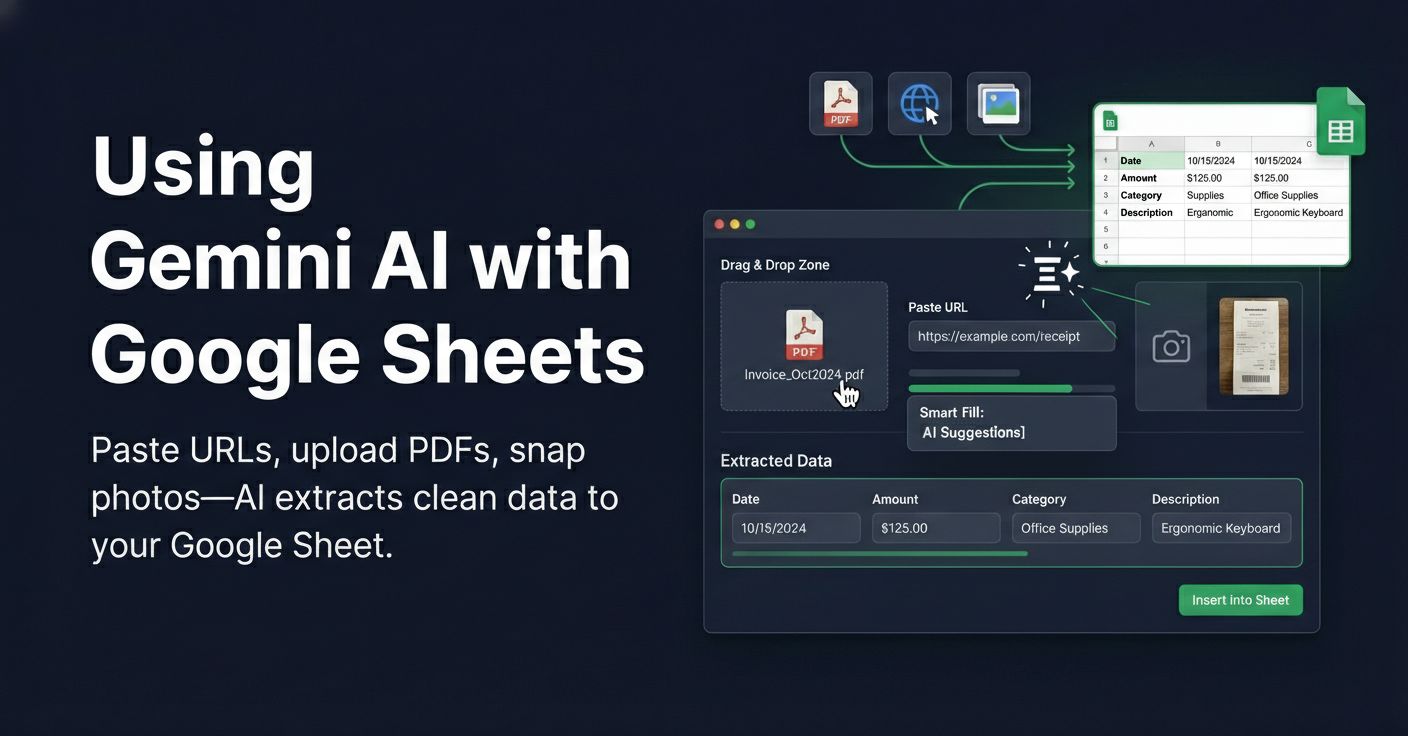
- Web Scraping — Paste any URL and extract structured data directly into your sheet
- PDF Extraction — Upload invoices, receipts, or documents and convert them to rows
- Image Data Entry — Take a photo of a receipt or form and send it to your spreadsheet
- AI Research — Describe what you need, and let AI find and populate the data
If you want concrete workflows for those tasks, see scraping websites to Sheets, PDF extraction to Sheets, and AI research to Sheets.
The Perfect Workflow
- Use Spreadsheet Agent to collect and input your data
- Use Gemini to analyze, transform, and gain insights
Together, you have an end-to-end AI workflow—from raw data to actionable insights.
Gemini vs. Spreadsheet Agent: When to Use Each
| Task | Gemini | Spreadsheet Agent |
|---|---|---|
| Generate formulas | ✅ | — |
| Analyze existing data | ✅ | — |
| Create charts and summaries | ✅ | — |
| Extract data from websites | — | ✅ |
| Convert PDFs to rows | — | ✅ |
| Input data from images | — | ✅ |
| Research and populate data | Limited | ✅ |
| Bulk data entry automation | — | ✅ |

Bottom line: Use Gemini for analysis and formulas. Use Spreadsheet Agent for data collection and entry.
Essential Tips for Using Gemini Safely
Go to File → Version history → Name current version before major AI edits. Undo may work for some actions, but for broad Gemini-driven changes users can still hit a "no undo function" UX in practice, so version history is the safer fallback.
Be Extremely Specific with Prompts
Vague prompts lead to unpredictable results. Instead of: "Help me with this data"
Try: "In cell E2, create a formula that calculates the month-over-month growth rate using values in column C, starting from row 2"
Reference Exact Cells and Ranges
Always mention column letters and row numbers explicitly: "Sum cells D2:D100 for rows where column A contains 'Q1'"
Test on a Copy First
For any formatting or bulk operations, duplicate your sheet first (Right-click tab → Duplicate) and test there.
Don't Trust Formatting Commands
Requests like "format this table" or "clean up this data" are where Gemini causes the most damage. Be very cautious with any command that modifies structure rather than just adding formulas.
"Gemini is able to generate a static graph for me that does NOT update as the form gets more submissions... When I click 'insert' on the Gemini suggestion, it inserts a large cell with a copy and paste of its own formula. Totally unhelpful."
— r/googlesheets user trying to create dynamic charts from Google Forms data
Ask for Explanations
Add "and explain how it works" to understand what Gemini is doing before applying it.
Frequently Asked Questions
Is Gemini in Google Sheets free?
Gemini requires a Google Workspace subscription (Business Standard or higher) or Google One AI Premium ($19.99/month for personal accounts).
Can Gemini access external data?
Mostly. Gemini in Sheets is primarily designed to work with data already in your sheet. For robust external ingestion workflows, teams typically use a separate tool to bring data in first.
Is my data safe with Gemini?
Google states that Gemini in Workspace doesn't use your data to train its models. Your business data remains private within your organization.
What languages does Gemini support?
Gemini works best in English but supports many other languages. Complex formulas and analysis may work better in English.
Can Gemini replace Excel formulas?
No, Gemini generates standard Google Sheets formulas. It makes creating them easier but doesn't replace the underlying formula system.
Complete Your AI Spreadsheet Workflow
Gemini is useful, but it is usually just one part of a complete spreadsheet workflow. Stop wasting time manually entering data.
Use Spreadsheet Agent to automate data entry, then let Gemini work its magic on the results.
Plans start at $5/month. No coding required.
When you are ready, open Spreadsheet Agent and start pulling data into your sheet.