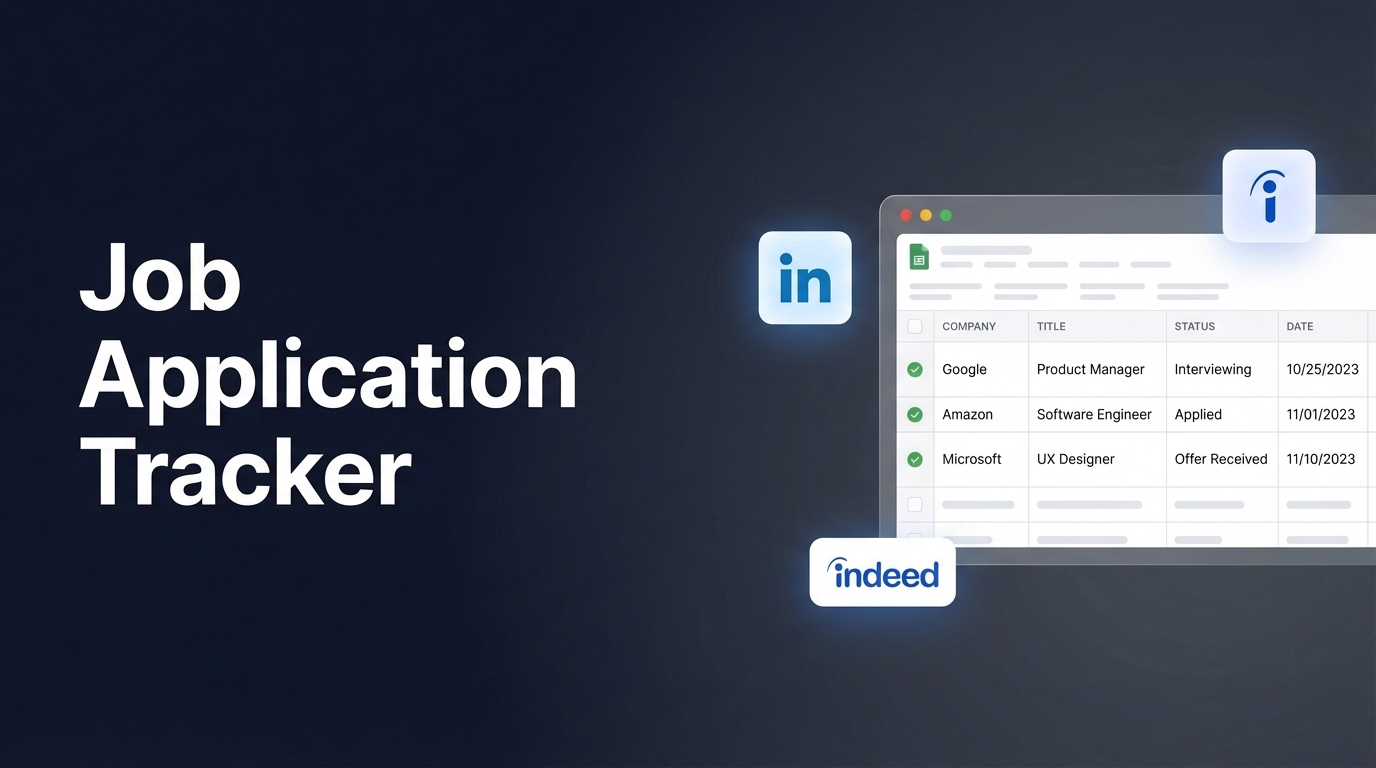
You're applying to 50+ jobs. LinkedIn, Indeed, company sites, referrals. After a week, you can't remember which ones you applied to, which need follow-up, and which ghosted you.
A job application tracker in Google Sheets fixes this—but manually copying company names, job titles, and URLs from every listing is tedious. Spreadsheet Agent automates the data entry: paste a job URL or screenshot, AI extracts the details, you track the status.
Step 1: Create Your Job Tracker Agent
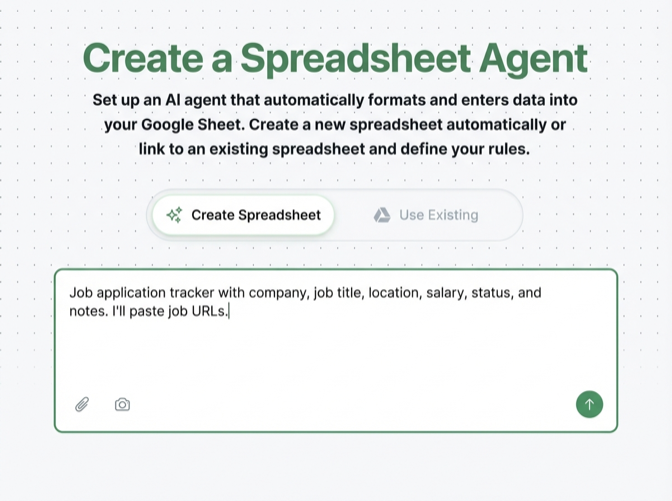
Open Spreadsheet Agent and describe your job search spreadsheet:
"Job application tracker with company name, job title, location, salary range, application date, status, and notes. I'll paste job listing URLs."
Spreadsheet Agent creates your Google Sheet with the right columns. You can also connect an existing job tracker spreadsheet if you've already started one.
Step 2: Configure Your Tracking Columns
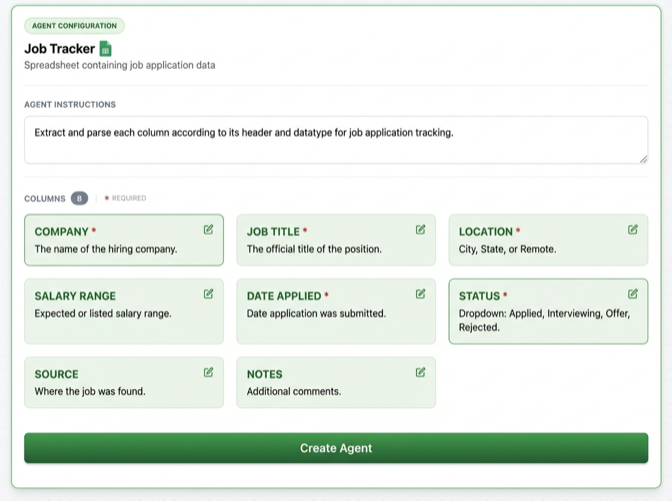
Set up columns that capture what matters for your job search:
- Company — Extract company name from the listing
- Job Title — The position you're applying for
- Location — City, state, or "Remote"
- Salary Range — If listed, extract min-max
- Date Applied — When you submitted
- Status — Applied, Interview, Offer, Rejected, No Response
- Source — LinkedIn, Indeed, Referral, Company Site
- Notes — Contact names, interview details, follow-up reminders
Step 3: Add Jobs From Any Source
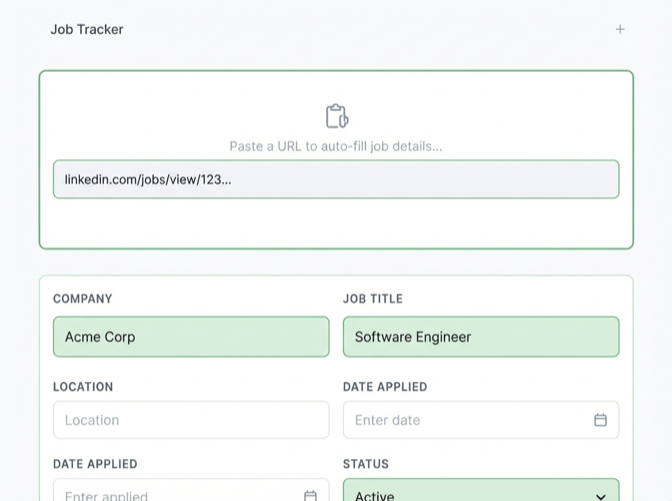
Found a job you want to track? Three ways to add it:
- Paste the URL — LinkedIn, Indeed, Glassdoor, company career pages
- Screenshot the listing — Works for any job board
- Copy the job description text — AI parses it into columns
AI reads the listing and extracts company, title, location, salary (if shown), and job details into the right columns.
Step 4: Track Application Status
After adding jobs, update status as you progress:
- Applied — Submitted the application
- Phone Screen — Initial recruiter call scheduled
- Interview — Technical or onsite interview
- Offer — Got an offer (congrats!)
- Rejected — Didn't move forward
- No Response — Radio silence after 2+ weeks
Filter your Google Sheet by status to see what needs follow-up. Sort by date to prioritize recent applications.
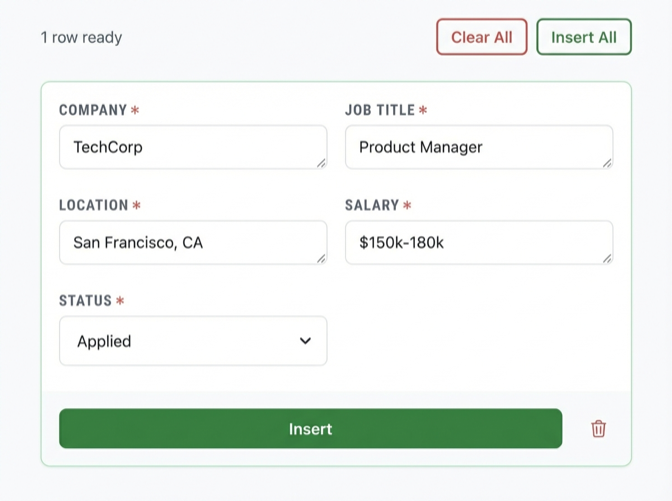
Log Applications Faster Than Manual Entry
Each job you add takes seconds instead of minutes:
- Copy a job listing URL from LinkedIn, Indeed, or any job board
- Paste it into Spreadsheet Agent
- AI extracts company, title, salary, location—everything
- Review the details and insert to your tracker
No more switching tabs and typing. Paste the link, review the data, done. When you've applied to 10+ jobs, those saved minutes add up fast.
Why Track Job Applications in Google Sheets?
Dedicated job tracker apps exist, but Google Sheets wins for flexibility:
- Free — No subscription for another job search tool
- Custom columns — Track what matters to you (referral bonus, visa sponsorship, etc.)
- Filter and sort — See all interviews this week, or all remote jobs
- Share with others — Let a career coach or mentor view your progress
- Export anywhere — Take your data if you switch tools
The problem with spreadsheets is data entry. Spreadsheet Agent solves that—paste URLs, AI does the typing.
What to Track in Your Job Search Spreadsheet
Beyond basics (company, title, status), consider tracking:
- Recruiter name and email — For follow-up messages
- Interview dates — Schedule visibility
- Compensation details — Base, bonus, equity, benefits
- Pros/cons — Quick notes on each opportunity
- Next action — What's the next step for this application?
Add these as columns when you create your agent, or add them later to your Google Sheet.
Frequently Asked Questions
What's the best job application tracker for Google Sheets?
For a simple template, Google Sheets templates work fine. But if you want to avoid manual data entry, Spreadsheet Agent lets you paste job URLs and automatically extracts company, title, location, and salary into your tracker. No typing required.
How do I track job applications in a spreadsheet?
Create columns for company, job title, date applied, status, and notes. For each application, add a row with the details. Update status as you hear back. Use filters to see applications by status or date. Spreadsheet Agent automates the data entry part—paste a job URL and it fills in the columns.
How many job applications should I track?
Track all of them. Even rejections are useful data—you'll see patterns in what types of roles respond. A job tracker spreadsheet helps you stay organized whether you're applying to 10 or 100 positions.
Can I import jobs from LinkedIn to Google Sheets?
LinkedIn doesn't have a direct export to Sheets. But you can copy LinkedIn job URLs into Spreadsheet Agent, and it will extract the job details into your Google Sheet automatically.
Should I use a job tracker app or spreadsheet?
Apps like Huntr or Teal are polished but cost money and lock in your data. Google Sheets is free, customizable, and portable. If you want the best of both—automated data entry without the subscription—use Spreadsheet Agent with Google Sheets.
Stop Losing Track of Applications
Every job you apply to deserves a follow-up. A job application tracker in Google Sheets keeps everything visible—what you applied to, when, and what happens next. Spreadsheet Agent makes building that tracker effortless.
When you are ready, open Spreadsheet Agent and add your first job listing.