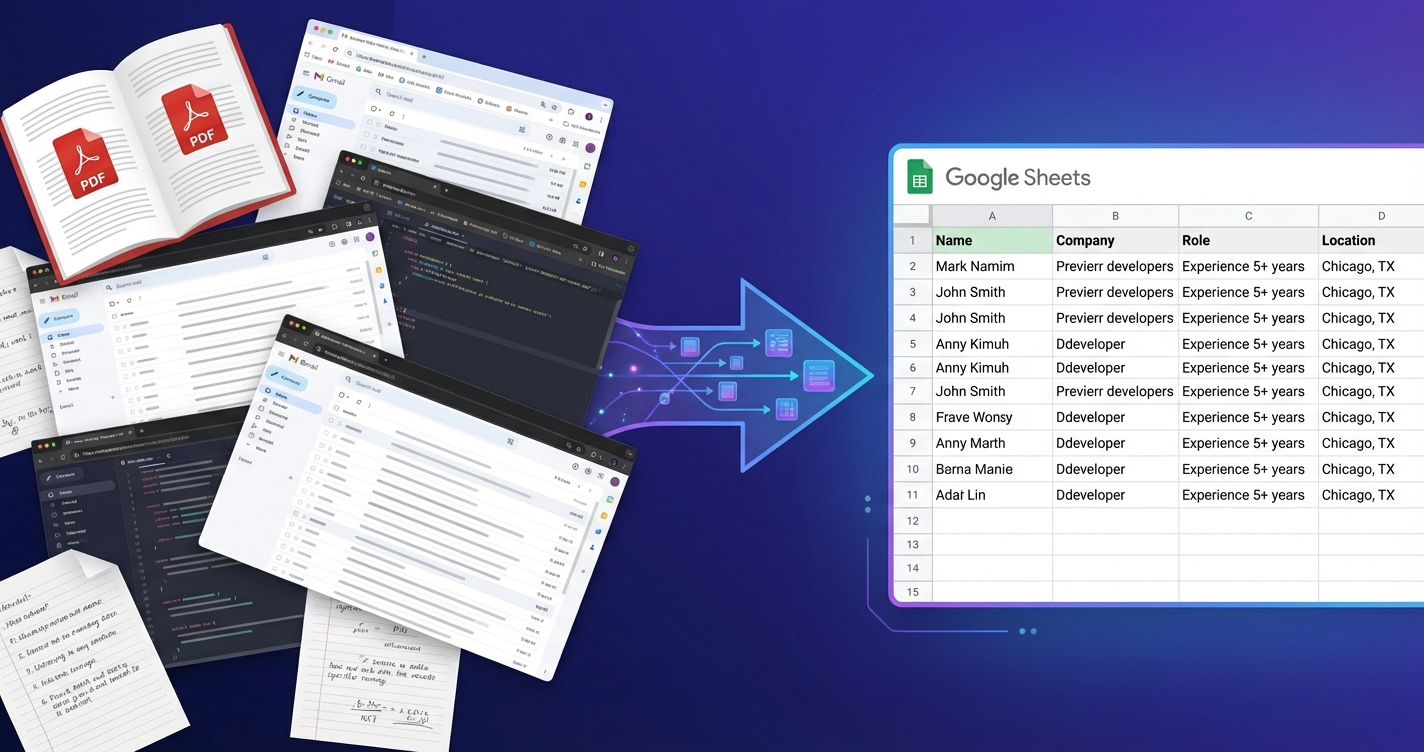
Still copy-pasting data into spreadsheets? There's a better way. Whether you're pulling product listings, processing invoices, or compiling research—the right data entry automation tool can save you hours every week.
This guide compares seven ways to automate data entry for Google Sheets—from workflow platforms like Zapier to AI-powered extractors that turn PDFs, URLs, and images into clean spreadsheet rows.
Quick Comparison: Data Entry Automation Tools
| Tool | Best For | Data Sources | Setup | Price |
|---|---|---|---|---|
| Zapier | App-to-app automation | 6,000+ apps | Medium | Free–$69/mo |
| Make | Complex workflows | 1,000+ apps | Complex | Free–$29/mo |
| Bardeen | Browser automation | Websites | Easy | Free–$20/mo |
| Browse.ai | Scheduled web scraping | Websites | Easy | Free–$49/mo |
| Parseur | Email & PDF parsing | Email, PDF | Medium | $33/mo+ |
| Spreadsheet Agent | Quick AI extraction | URL, PDF, images, text | Easy | $5/mo |
| DIY (Apps Script) | Full customization | APIs, web | Complex | Free |
Zapier: Best for App-to-App Workflow Automation
Zapier connects 6,000+ apps through automated workflows called "Zaps." When an event happens in one app (like receiving an email), Zapier can automatically add data to your Google Sheet.
Strengths:
- Huge library of integrations
- Multi-step workflows supported
- No coding required for basic automations
Limitations:
- Costs can increase quickly at high task volume, especially with premium apps or task overages
- PDF/image extraction is limited natively; robust workflows usually require OCR/parser integrations
- Native web parsing is limited; broader scraping workflows typically rely on specialized integrations
Best fit: Teams that need to move structured data between apps they already use (CRM → Sheet, form → Sheet, etc.).
Make: Best for Complex Multi-Step Automations
Make (formerly Integromat) is a powerful Zapier alternative with a visual workflow builder that handles complex, branching automations better than most competitors.
Strengths:
- Visual flow builder makes complex logic easier to manage
- More affordable than Zapier for high-volume use
- Supports advanced data transformation
Limitations:
- Steeper learning curve than Zapier
- Still limited with unstructured data (PDFs, screenshots)
- Overkill for simple use cases
Best fit: Teams building sophisticated, multi-step spreadsheet automation workflows with conditional logic.
Bardeen: Best for Browser-Based Data Entry
Bardeen is a browser extension that automates repetitive web tasks. You can record actions (click, copy, scroll) and replay them to extract data into Google Sheets.
Strengths:
- Works on any website you can see in your browser
- No-code automation with a recorder
- Can trigger automations manually or on schedule
Limitations:
- Breaks when websites change their layout
- Requires your browser to be open for scheduled runs
- Not ideal for bulk extraction or PDFs
Best fit: Individuals who need to automate repetitive browser workflows like copying data from dashboards or internal tools.
Browse.ai: Best for Scheduled Web Scraping
Browse.ai trains a bot to scrape websites for you. Point and click to select the data you want, and it monitors the page for updates—pushing new data to your Google Sheet automatically.
Strengths:
- No coding required—uses point-and-click setup
- Monitors pages and alerts you to changes
- Good for extracting lists (products, jobs, etc.)
Limitations:
- Credits-based pricing can get expensive for large scrapes
- Not primarily designed for robust PDF or image extraction
- Anti-bot protections can block some sites
Best fit: Teams that need ongoing, scheduled scraping from specific websites (competitor monitoring, price tracking).
Parseur: Best for Email and PDF Parsing
Parseur extracts data from emails and PDF attachments using AI-powered templates. Forward emails to your Parseur inbox, and it parses the content into structured data for Google Sheets automation.
Strengths:
- Excellent at parsing recurring emails (order confirmations, lead forms)
- Learns from your corrections to improve accuracy
- Handles PDF attachments
Limitations:
- Requires email forwarding workflow
- Higher starting price ($33/month minimum)
- Not designed for on-demand extraction or web scraping
Best fit: Businesses processing high volumes of transactional emails (invoices, shipping notifications, lead submissions).
Spreadsheet Agent: Best for Quick AI Data Extraction
Spreadsheet Agent is an AI-powered data entry automation tool built specifically for Google Sheets. Paste a URL, upload a PDF, or drop an image—and AI extracts the relevant data into clean spreadsheet rows.
Strengths:
- Handles multiple input types: URLs, PDFs, images, and text
- No templates or training required—AI understands content semantically
- Review data before it hits your sheet (strong human oversight)
- Simple pricing at $5/month
Limitations:
- Not designed for scheduled, recurring automations (on-demand extraction)
- Best for single or batch extraction rather than continuous monitoring
Best fit: Anyone who needs to quickly extract data from various sources into Google Sheets without building complex workflows—researchers, analysts, small business owners, and freelancers.
DIY: Apps Script and ImportXML (Free)
For those comfortable with code, Google's built-in tools offer free spreadsheet automation. Apps Script lets you write custom JavaScript functions, while IMPORTXML and IMPORTHTML pull data from web pages.
Strengths:
- Completely free
- Fully customizable to your exact needs
- No external dependencies
Limitations:
- Requires coding knowledge (JavaScript for Apps Script, XPath for import functions)
- IMPORTXML breaks frequently when websites change
- Doesn't process PDFs or images natively
- Maintenance burden falls on you
Best fit: Developers or technically-inclined users with specific requirements and time to maintain custom solutions.
Which Data Entry Automation Tool Should You Choose?
The best tool depends on your primary use case:
- Connecting apps you already use? → Zapier or Make
- Automating browser tasks? → Bardeen
- Monitoring websites for updates? → Browse.ai
- Processing recurring emails? → Parseur
- Extracting from PDFs, URLs, images, or text on-demand? → Spreadsheet Agent
- Full control with custom code? → Apps Script + IMPORTXML
If you're looking for a Zapier alternative that focuses on extracting data from diverse sources into Google Sheets—without complex workflow setup—Spreadsheet Agent fills a gap that workflow tools don't address well.
Frequently Asked Questions
What is the best way to automate data entry?
The best way depends on your data source. For app-to-app transfers, use Zapier or Make. For extracting data from websites, PDFs, or images into Google Sheets, an AI-powered tool like Spreadsheet Agent offers the fastest path with minimal setup.
Can I automate data entry in Google Sheets without coding?
Yes. Tools like Zapier, Bardeen, Browse.ai, and Spreadsheet Agent all offer no-code Google Sheets automation. The choice depends on whether you need app integrations, browser automation, scheduled scraping, or AI-powered extraction.
How do I extract data from PDFs to spreadsheets automatically?
For PDF extraction, use a tool that supports document processing like Parseur (for recurring email attachments) or Spreadsheet Agent (for on-demand PDF extraction). AI reads the content and extracts structured data into spreadsheet rows.
What's the cheapest way to automate spreadsheet data entry?
The cheapest options are Google's built-in IMPORTXML/IMPORTHTML functions (free but require XPath knowledge) or Spreadsheet Agent at $5/month for AI-powered extraction. Workflow tools like Zapier and Make offer free tiers but quickly require paid plans for serious use.
Stop Manual Data Entry Today
Manual data entry is a solved problem. Whether you choose a workflow automation platform, a specialized web scraper, or an AI-powered extraction tool—the right data entry automation solution can reclaim hours of your week.
For quick, on-demand extraction from URLs, PDFs, images, and text—without building complex workflows—try Spreadsheet Agent. Paste your data source, review the AI extraction, and push clean rows to your Google Sheet quickly. If you want a walkthrough first, see PDF-to-Sheets and website-to-Sheets guides.